> ## Documentation Index
> Fetch the complete documentation index at: https://docs.useparagon.com/llms.txt
> Use this file to discover all available pages before exploring further.
# Making API Requests
> Making HTTP requests with Paragon
## Overview
You can make requests to any HTTP API using Paragon's Request steps. This is useful for connecting workflows to your application's internal API, the integration's API, or to any REST APIs in general.
## Types of Requests
Make authenticated requests directly to integration providers' APIs using pre-configured connections.
Make HTTP requests to any external API or your own application's API. Perfect for external calls and connecting to internal services.
## Making Integration Requests
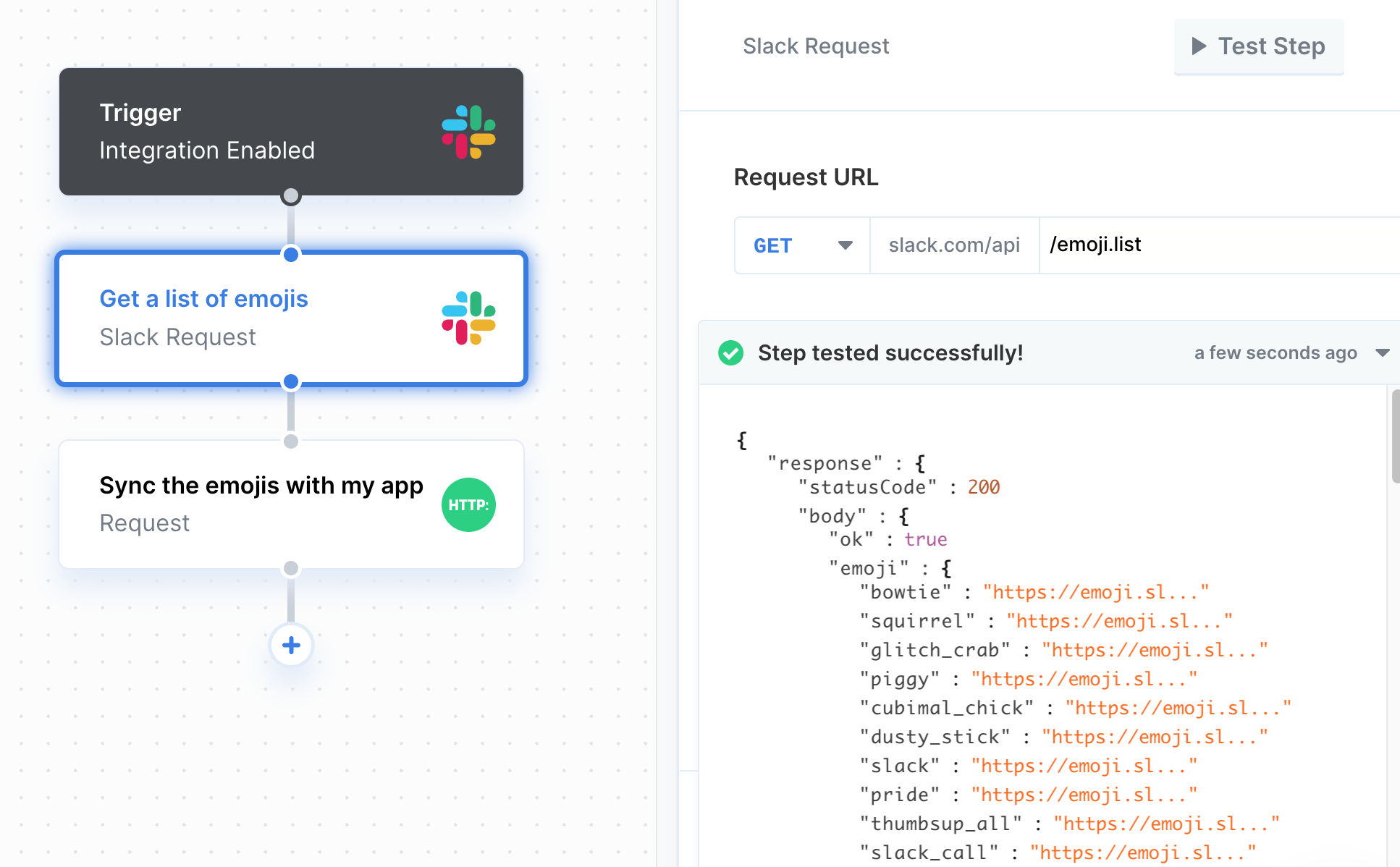
The **Integration Request** is a per-integration step that allows you to make HTTP calls to any endpoint the integration supports. This means you can access actions that aren't yet supported natively by Paragon.
 ### Configuring the Authentication
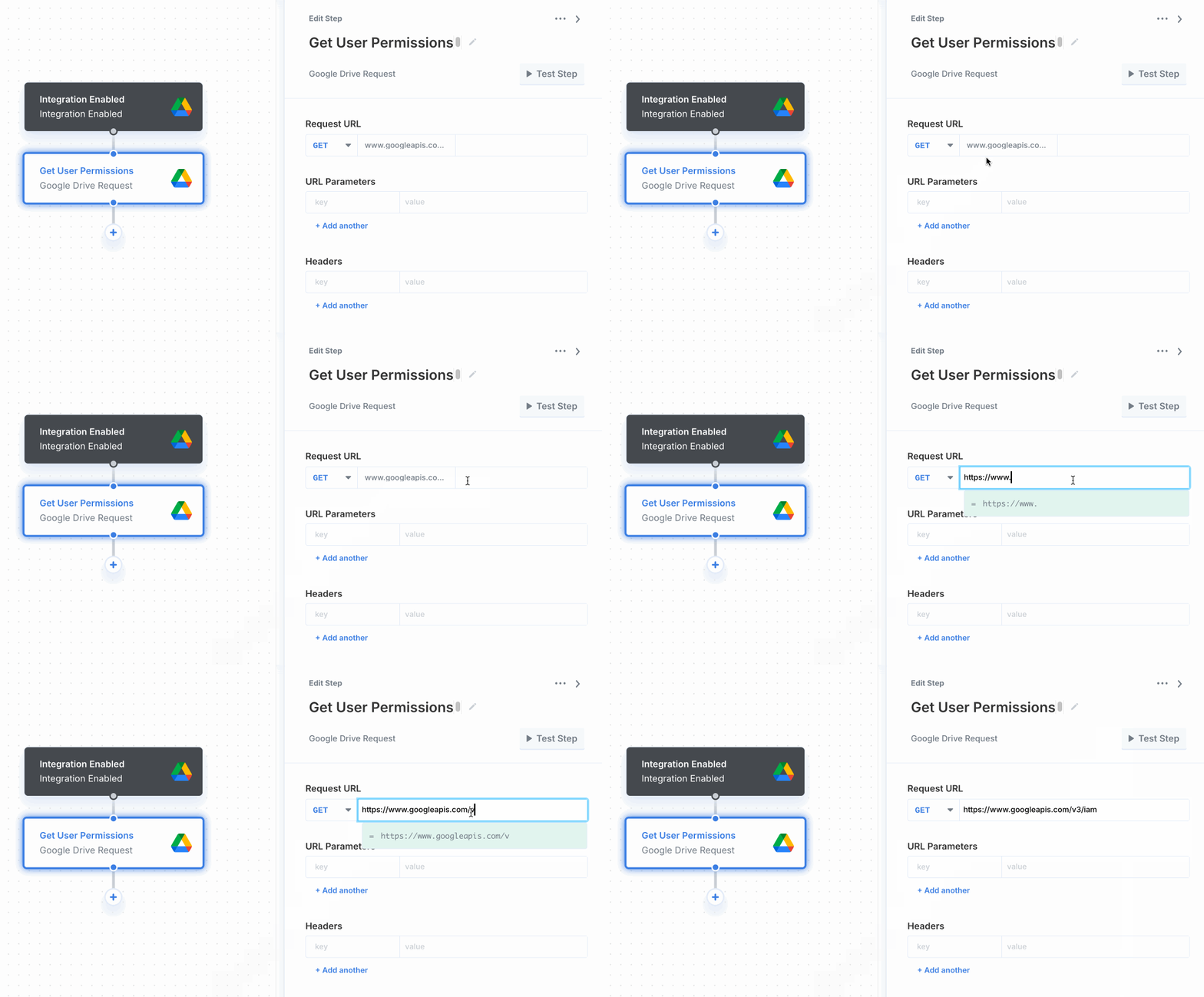
We've got you covered! You can leave out the authentication piece to connect to your integration's API since you've connected using Paragon. We prefix the URL of each integration, so you only have to enter the API endpoint and any parameters.
### Replacing the Base URL
If you need to overwrite the default base URL Paragon provides for any request you make to the integration provider, you can do so by typing `https://` in the input followed by the rest of the URL.
### Configuring the Authentication
We've got you covered! You can leave out the authentication piece to connect to your integration's API since you've connected using Paragon. We prefix the URL of each integration, so you only have to enter the API endpoint and any parameters.
### Replacing the Base URL
If you need to overwrite the default base URL Paragon provides for any request you make to the integration provider, you can do so by typing `https://` in the input followed by the rest of the URL.
 ## Making API Requests
To add a request to your workflow, click the "+" button in the workflow canvas and choose the Request step from the sidebar. You can follow familiar specifications to setup requests in Paragon:
* URL
* Request type
* `POST`
* `GET`
* `PATCH`
* `PUT`
* `DELETE`
* Request data
* Query parameters
* Headers
* Body parameters
* `JSON`
* `multipart/form-data`
* `x-www-form-urlencoded`
* `GraphQL`
* `XML`
* `Raw`
* Authorization
* `Bearer Token`
* `Basic Auth`
* `Query Params`
* `Auth Header`
* `OAuth 2.0 Client Credentials`
* `OAuth 2.0 Refresh Token`
* `ROPC Access Token`
### Configuring your Request URL
You can enter the request URL in the input under "**Request URL"**. You can also include parameters as part of the URL by typing `{{` to invoke the variable menu.
## Making API Requests
To add a request to your workflow, click the "+" button in the workflow canvas and choose the Request step from the sidebar. You can follow familiar specifications to setup requests in Paragon:
* URL
* Request type
* `POST`
* `GET`
* `PATCH`
* `PUT`
* `DELETE`
* Request data
* Query parameters
* Headers
* Body parameters
* `JSON`
* `multipart/form-data`
* `x-www-form-urlencoded`
* `GraphQL`
* `XML`
* `Raw`
* Authorization
* `Bearer Token`
* `Basic Auth`
* `Query Params`
* `Auth Header`
* `OAuth 2.0 Client Credentials`
* `OAuth 2.0 Refresh Token`
* `ROPC Access Token`
### Configuring your Request URL
You can enter the request URL in the input under "**Request URL"**. You can also include parameters as part of the URL by typing `{{` to invoke the variable menu.
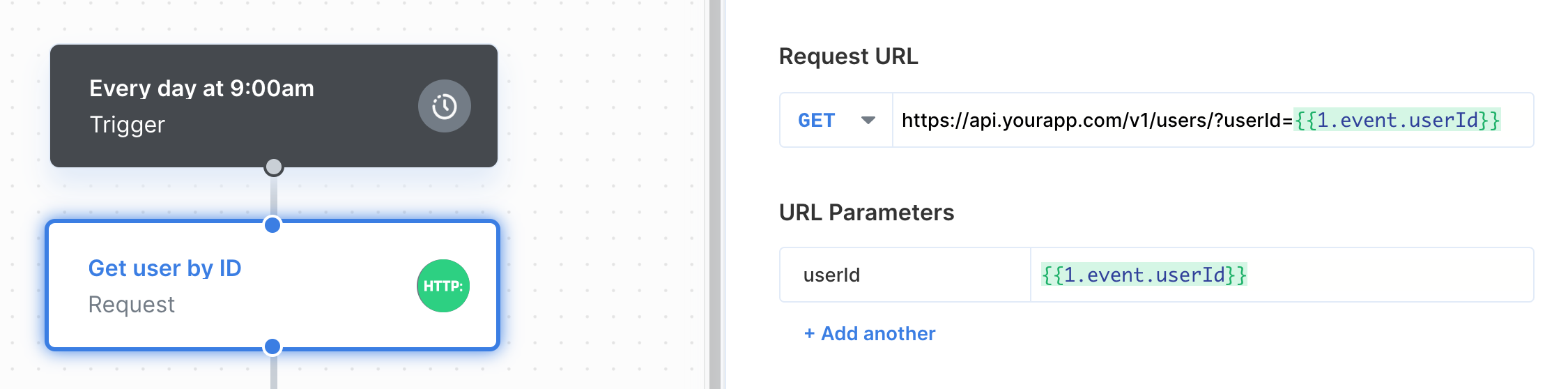 The **variable menu** allows you to reference data from upstream steps in your request URL. For example, we can pass a `userId` from the Trigger into the request URL, which is represented as: `/users/{{1.event.userId}}`
### Sending data in a request
Query parameters, headers, and body parameters can be included in the request by adding them in the key-value table under their respective heading.
The **variable menu** allows you to reference data from upstream steps in your request URL. For example, we can pass a `userId` from the Trigger into the request URL, which is represented as: `/users/{{1.event.userId}}`
### Sending data in a request
Query parameters, headers, and body parameters can be included in the request by adding them in the key-value table under their respective heading.
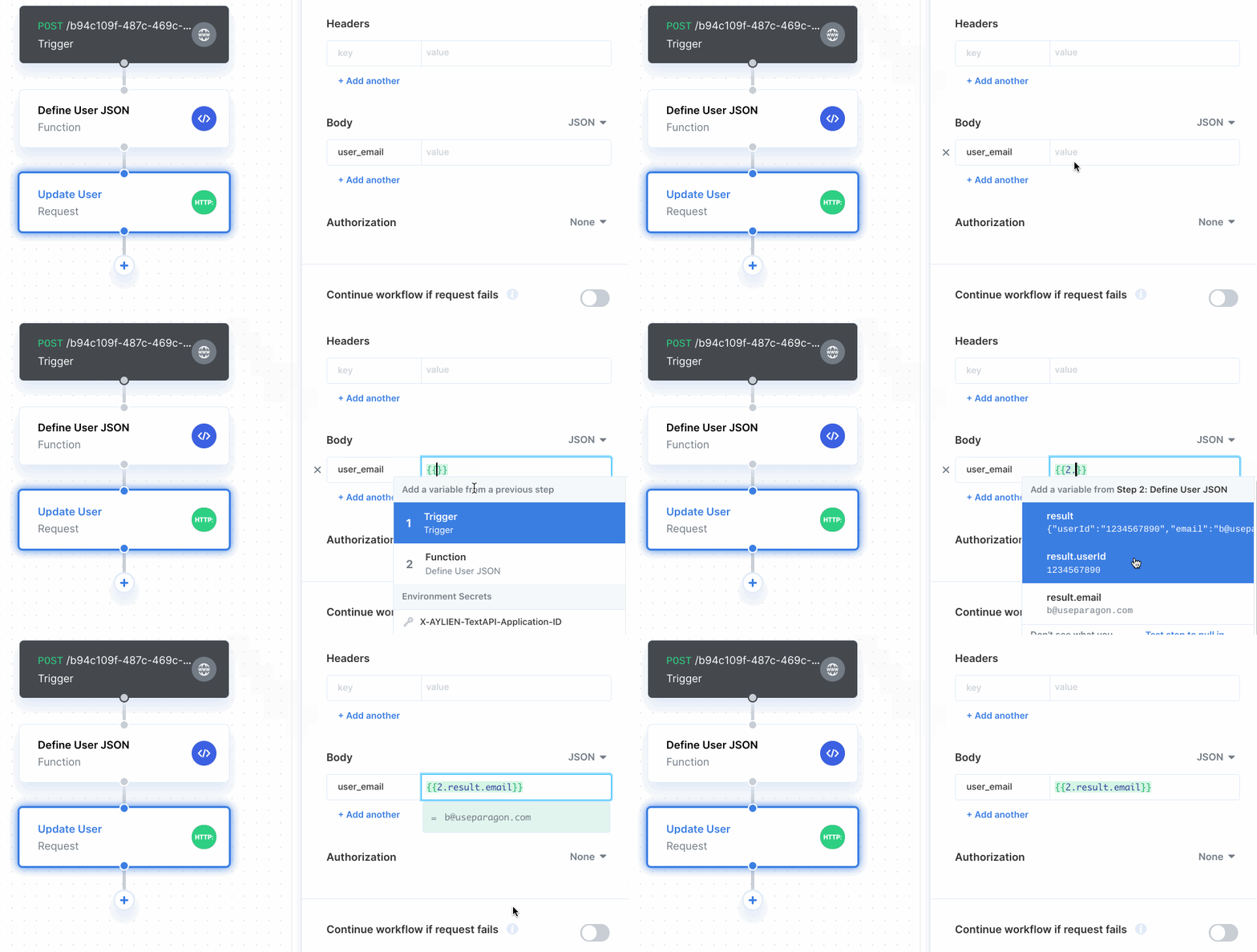 When using the key-value table, you can type in **static values** or **reference variables** from upstream steps by invoking the variable menu using the dropdown button.
### Sending JSON in a request
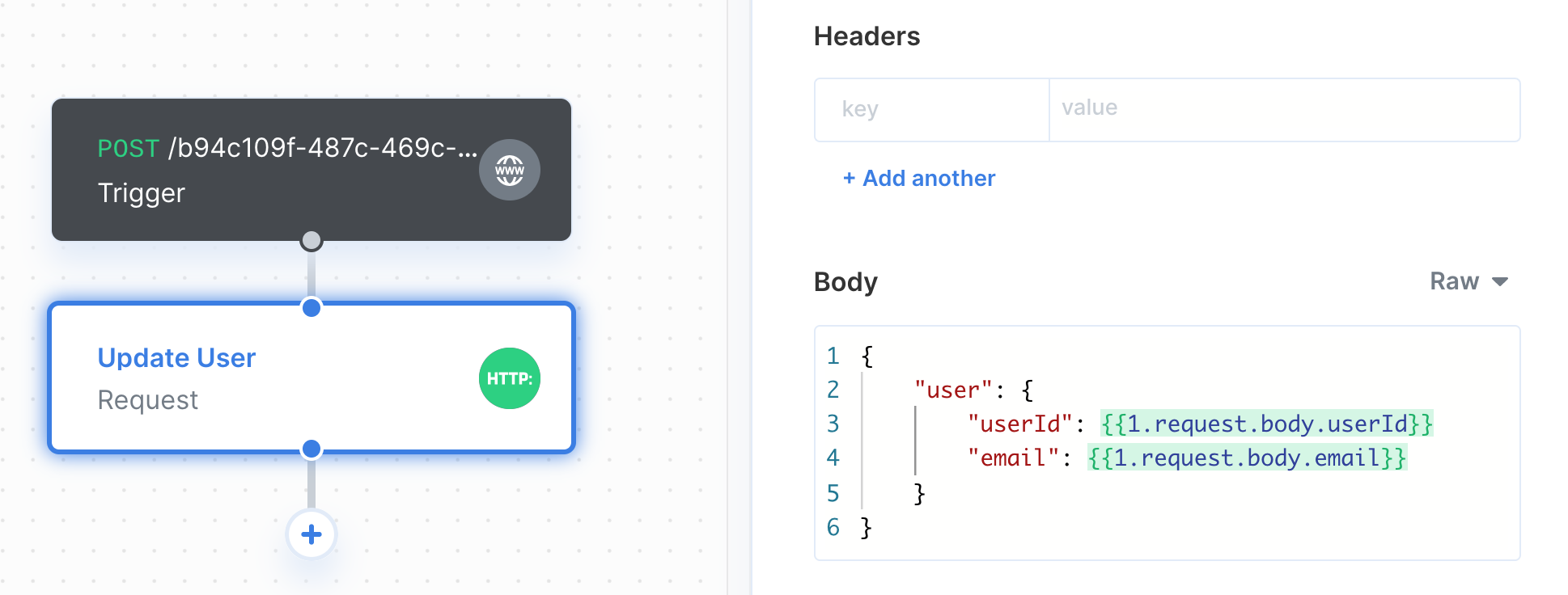
You can easily send JSON in a request by choosing `Raw` in the dropdown to the right of Body. When creating the raw JSON body, you can type in **static values** or **reference variables** from upstream steps by typing `{{` to invoke the variable menu.
When using the key-value table, you can type in **static values** or **reference variables** from upstream steps by invoking the variable menu using the dropdown button.
### Sending JSON in a request
You can easily send JSON in a request by choosing `Raw` in the dropdown to the right of Body. When creating the raw JSON body, you can type in **static values** or **reference variables** from upstream steps by typing `{{` to invoke the variable menu.
 ### Sending File Data in a request
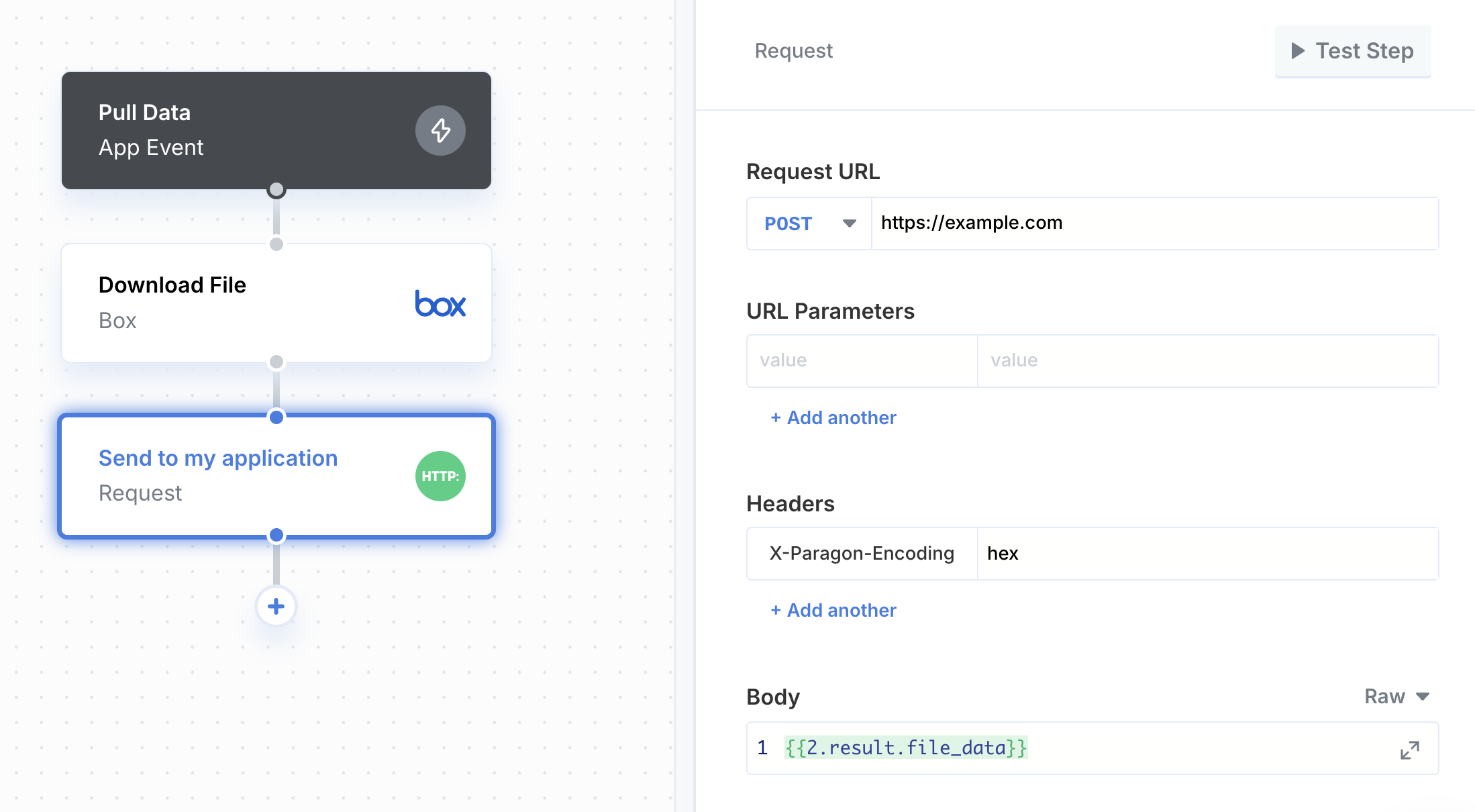
You can send file data in a request by adding a `X-Paragon-Encoding` header. The encoding should be set to encoding used in the file, like `hex`.
### Sending File Data in a request
You can send file data in a request by adding a `X-Paragon-Encoding` header. The encoding should be set to encoding used in the file, like `hex`.
 ### Handling request failures
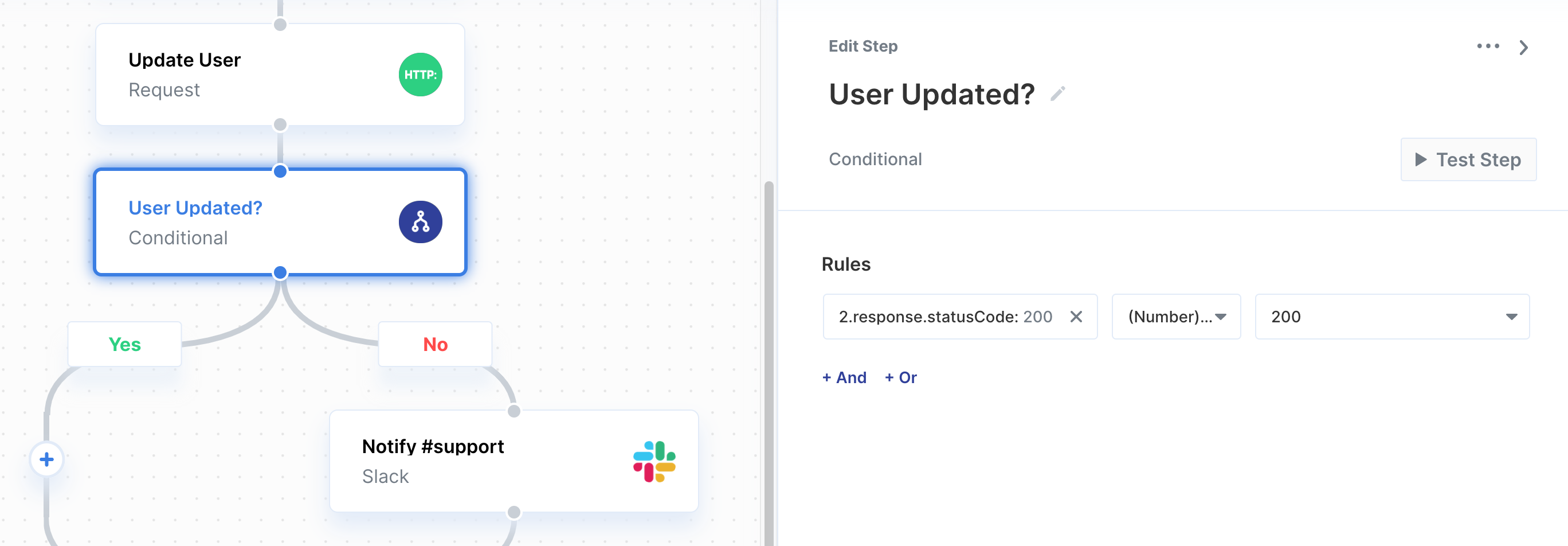
You can choose whether or not the workflow should continue to the next step if the request fails under "Continue workflow if request fails". This option is useful if you want to conditionally handle request failures. You can do this by adding a Conditional step after the Request step, then referencing the request's response status code in the Conditional.
### Handling request failures
You can choose whether or not the workflow should continue to the next step if the request fails under "Continue workflow if request fails". This option is useful if you want to conditionally handle request failures. You can do this by adding a Conditional step after the Request step, then referencing the request's response status code in the Conditional.