> ## Documentation Index
> Fetch the complete documentation index at: https://docs.useparagon.com/llms.txt
> Use this file to discover all available pages before exploring further.
# Version History
> Review and restore previous versions of your workflow. Check or revert to earlier workflow versions.
If [Git Sync](/paragraph/setting-up-git-sync) is enabled, saving a version within Paragon also saves the changes to your connected Git repo.
## Overview
Version History keeps track of the important changes to your workflow.
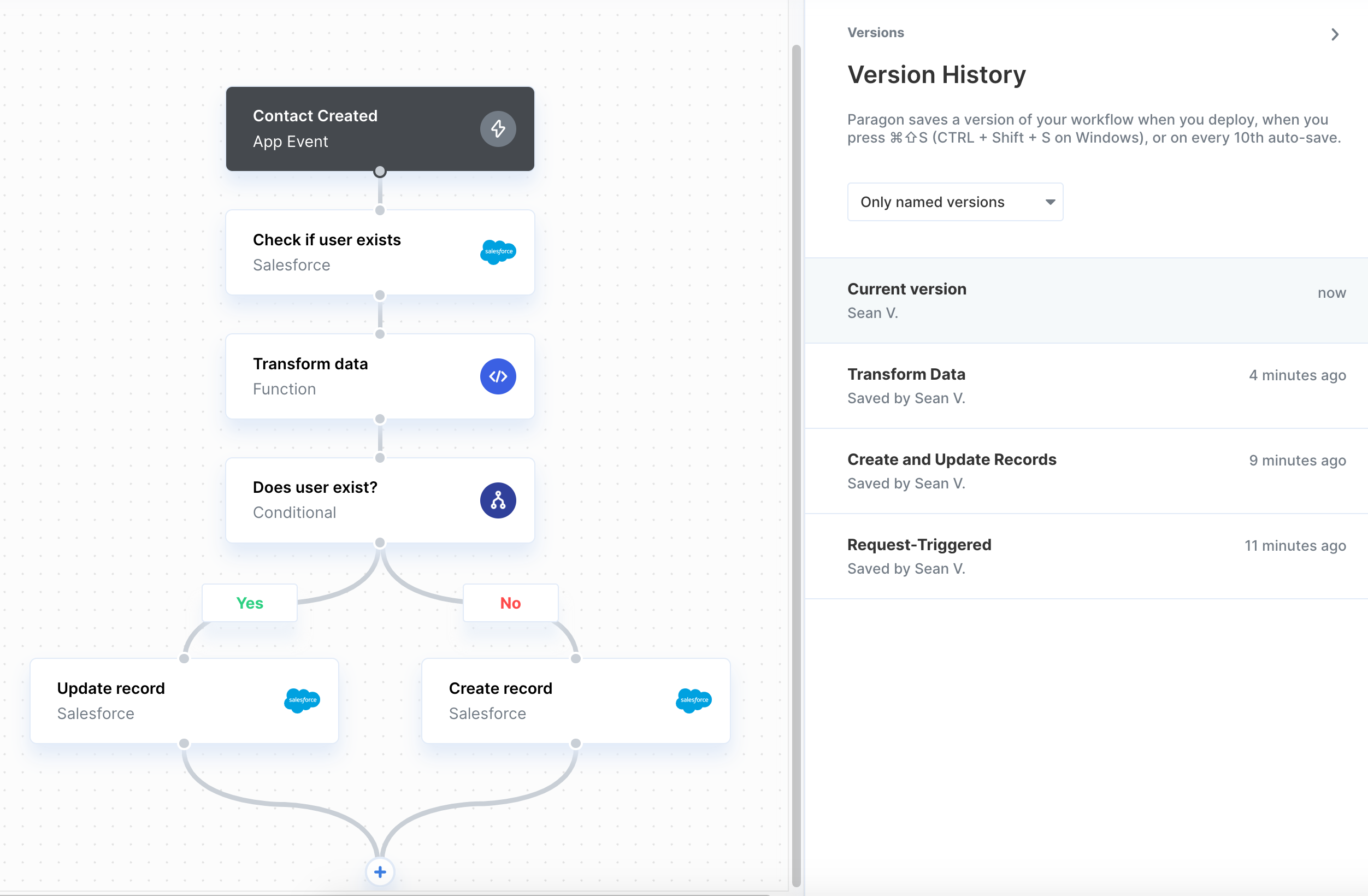 You can filter the list of versions by:
* All Versions
* Named versions
* Saved versions
* Deployed versions
## Saving a new version of your workflow
Versions will be made whenever you perform one of the following actions:
* Deploy the workflow
* Press ⌘⇧S on macOS or `CTRL` + `Shift` + `S` on Windows
* Restore to a previous version
* Manually click "Save Version" in the triple-dot menu
* Every 10th update or edit to your workflow
## Viewing or reverting to earlier versions of workflows
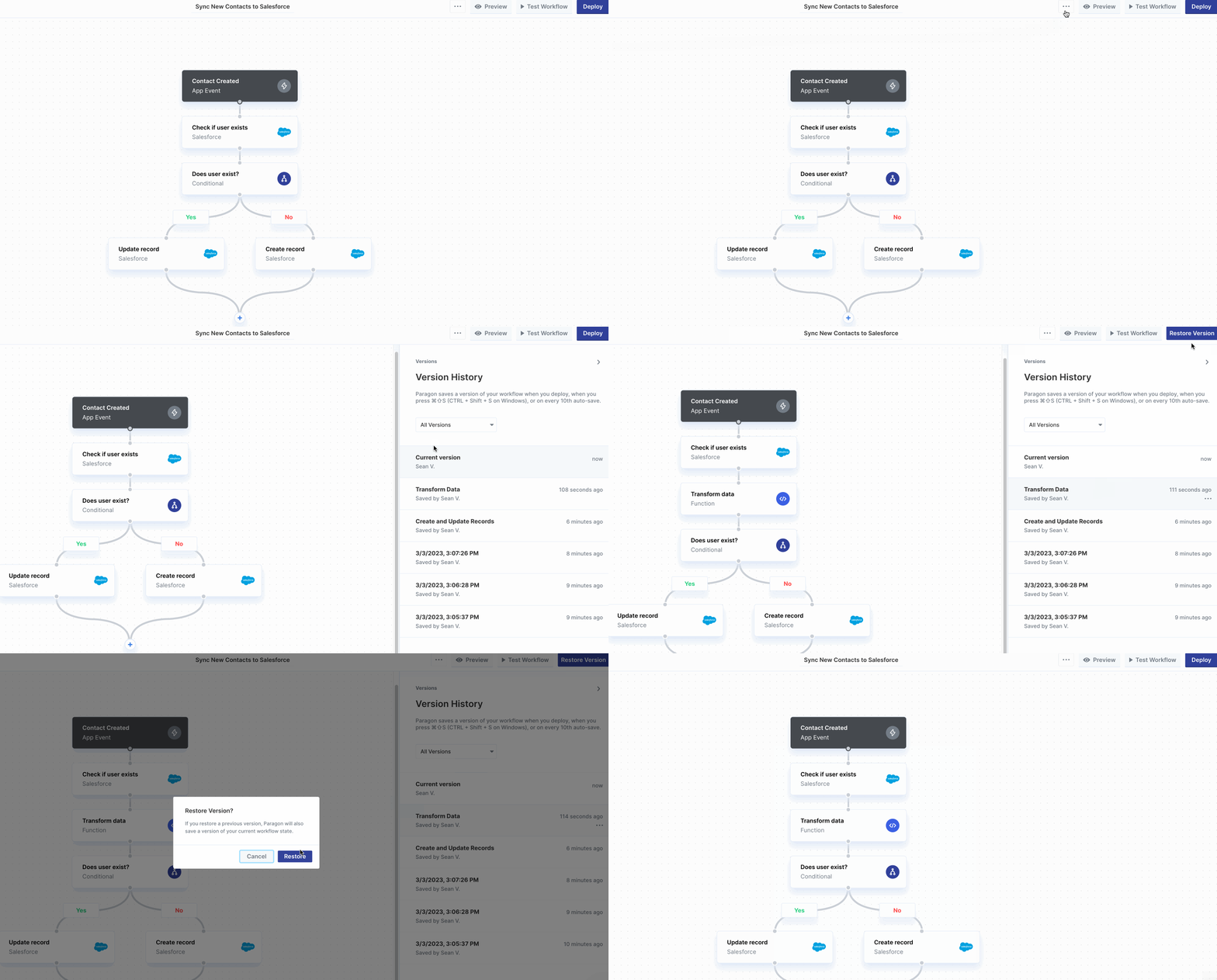
1. In [Paragon](https://app.useparagon.com/), open your workflow.
2. Click the **Horizontal three dots > Manage Versions**
3. Click a timestamp to see a previous version of the workflow. Below the timestamp, you'll see the name of the person who saved or deployed the workflow.
4. (Optional) To revert to this version, click **Restore this version.**
You can filter the list of versions by:
* All Versions
* Named versions
* Saved versions
* Deployed versions
## Saving a new version of your workflow
Versions will be made whenever you perform one of the following actions:
* Deploy the workflow
* Press ⌘⇧S on macOS or `CTRL` + `Shift` + `S` on Windows
* Restore to a previous version
* Manually click "Save Version" in the triple-dot menu
* Every 10th update or edit to your workflow
## Viewing or reverting to earlier versions of workflows
1. In [Paragon](https://app.useparagon.com/), open your workflow.
2. Click the **Horizontal three dots > Manage Versions**
3. Click a timestamp to see a previous version of the workflow. Below the timestamp, you'll see the name of the person who saved or deployed the workflow.
4. (Optional) To revert to this version, click **Restore this version.**
 ## How long versions are saved
The number of days versions will be saved depends on your plan.
* **Trial:** 45 days
* **Pro:** 90 days
* **Enterprise:** Unlimited
**Note:** Versions older than your history limit are accessible upon upgrading.
## How long versions are saved
The number of days versions will be saved depends on your plan.
* **Trial:** 45 days
* **Pro:** 90 days
* **Enterprise:** Unlimited
**Note:** Versions older than your history limit are accessible upon upgrading.