
Documentation Index

Fetch the complete documentation index at: https://docs.useparagon.com/llms.txt

Use this file to discover all available pages before exploring further.

If your in-product workflow builder or UI will allow users to configure their own triggers, use the JavaScript SDK or Triggers API to collect user input for trigger parameters such as a Salesforce Record Type or event filter conditions.

Trigger Parameters

The SDK provides all available Trigger Parameters when you call paragon.getTriggers. You can also fetch the same schema directly from List Available Triggers. Each trigger has a parameters field that will provide a list of Paragon-formatted Input Types that can be rendered and exposed to your users.
const response = await paragon.getTriggers("salesforce", {
  // Optional: pass when Multi-Account Authorization.
  selectedCredentialId: "<Credential ID>",
});

const triggerDefinitions = response.triggers.salesforce;
Response: Trigger definitions
{
  "triggers": {
    "salesforce": [
      {
        "type": "SALESFORCE_TRIGGER_RECORD_CREATED",
        "triggerModel": "POLLING",
        "title": "New Record",
        "description": "Trigger when a new record is created in Salesforce",
        "parameters": [
          {
            "id": "recordType",
            "type": "ENUM",
            "title": "Record type",
            "required": true,
            "valuesSource": {
              "sourceType": "recordTypes",
              "dependencies": []
            }
          }
        ]
      }
    ]
  }
}
The id property of each input should be used as the key names of parameters when calling Subscribe to a Trigger. The values should be the input collected from your user.

Displaying Inputs

Render each trigger parameter based on its type, and use paragon.getSourcesForActionInput to determine whether the input needs static or dynamic options.
JavaScript SDK
const inputSources = paragon.getSourcesForActionInput(input);

switch (inputSources.source.type) {
  // Static dropdowns
  case "STATIC_ENUM":
    renderSelectInput({
      input,
      value,
      options: inputSources.source.values,
      onChange,
    });
    break;

  // Dynamic dropdowns
  case "DYNAMIC_DATA_SOURCE":
    const options = await paragon.getFieldOptions({
      integration,
      action: inputSources.source.cacheKey,
      parameters: inputSources.source.dependencies.map((key) => ({
        key,
        source: { type: "VALUE", value: triggerForm.parameters[key] },
      })),
    });
    renderSelectInput({ input, value, options, onChange });
    break;
  default:
    renderPlainInput({ input, value, onChange });
    break;
}
For plain inputs, render directly from input.type. For example, TEXT, CODE, PASSWORD, and NUMBER can be rendered as text inputs; TEXTAREA can be rendered as a textarea; BOOLEAN_INPUT and SWITCH can be rendered as toggles. For static dropdowns, getSourcesForActionInput returns a STATIC_ENUM source. Render these values directly in your dropdown. Some inputs require loading dynamic data from the user’s connected account. For example, the Salesforce: New Record trigger requires an Object selection to be made by your user:
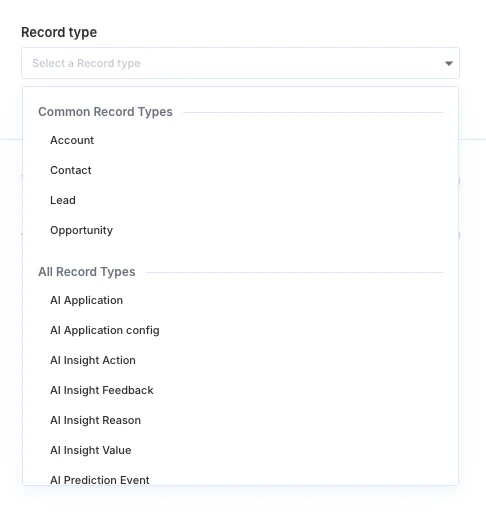
Dropdown menu of Salesforce record type options
For dynamic dropdowns, getSourcesForActionInput returns a DYNAMIC_DATA_SOURCE source. Pass the source to getFieldOptions, along with any dependency values required by source.refreshDependencies.
JavaScript SDK
async function loadDynamicOptions({
  integration,
  source,
  parameterValues,
  search,
  selectedCredentialId,
}) {
  const dependencyKeys = (source.refreshDependencies ?? []).filter(
    (key) => typeof key === "string"
  );

  const dependencies = dependencyKeys.map((key) => ({
    cacheKey: key,
    value: parameterValues[key],
  }));

  const hasDependencies = dependencyKeys.length > 0;
  const dependenciesSatisfied = dependencies.every((item) => Boolean(item.value));

  if (hasDependencies && !dependenciesSatisfied) {
    return [];
  }

  const response = await paragon.getFieldOptions({
    integration,
    source,
    search,
    selectedCredentialId,
    parameters: dependencies.map((dependency) => ({
      key: dependency.cacheKey,
      source: {
        type: "VALUE",
        value: dependency.value,
      },
    })),
  });

  return response.data;
}

Conditional inputs

For CONDITIONAL inputs, render a filter builder UI, such as the below:
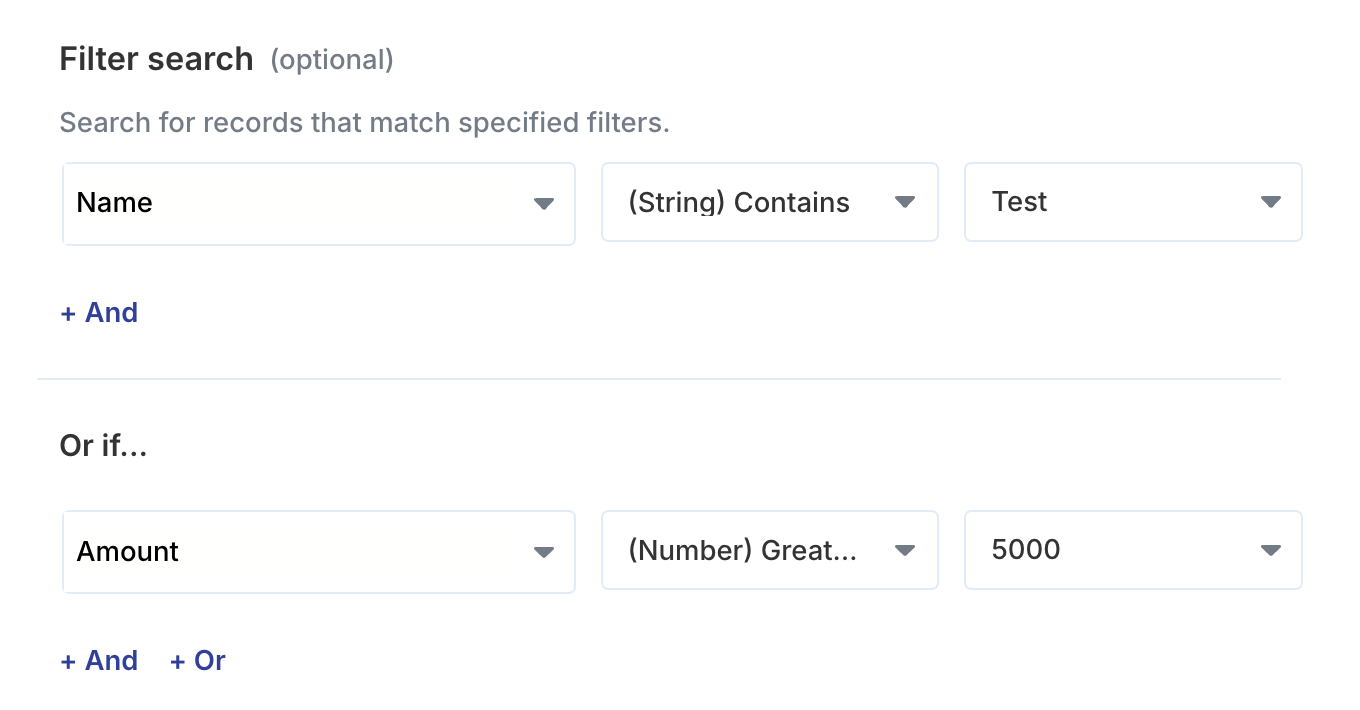
Filter builder UI
The value should be an object with operator (OR or AND) and conditions properties; each condition contains the selected field, operator, and value.
JavaScript SDK
const filterValue = {
  operator: "OR",
  conditions: [
    {
      field: "Name",
      operator: "$stringContains",
      value: "Test",
    },
    {
      field: "Amount",
      operator: "$numberGreaterThan",
      value: "5000",
    },
  ],
};
For complex conditional inputs, you can use DNF (Disjunctive Normal Form) to represent the filter value. Conditional inputs can provide static supportedKeys or a dynamic supportedKeysSource for listing out available options for field. When the keys are dynamic, load them the same way you load dynamic dropdown options. Use supportedOperators to limit the operators available in your UI, and respect disableOrCondition if your filter builder supports OR groups.
JavaScript SDK
async function getConditionalFields({ integration, input, parameterValues }) {
  if (input.supportedKeys?.length) {
    return input.supportedKeys.map((key) => ({ label: key, value: key }));
  }

  if (!input.supportedKeysSource) {
    return [];
  }

  const response = await paragon.getFieldOptions({
    integration,
    action: input.supportedKeysSource.sourceType,
    parameters: input.supportedKeysSource.dependencies.map((key) => ({
      key,
      source: {
        type: "VALUE",
        value: parameterValues[key],
      },
    })),
  });

  return flattenOptions(response.data);
}
Once your user has configured the trigger, send the collected parameter values to Subscribe to a Trigger.
Subscribe to a Trigger request body
{
  "integration": "salesforce",
  "triggerType": "SALESFORCE_TRIGGER_RECORD_CREATED",
  "parameters": {
    "objectName": "Opportunity",
    "recordsFilterFormula": {
      operator: "OR",
      conditions: [
        {
          field: "Name",
          operator: "$stringContains",
          value: "Test",
        },
        {
          field: "Amount",
          operator: "$numberGreaterThan",
          value: "5000",
        },
      ]
    }
  }
}
See the resources below for implementation details:

Input Types

Learn more about each Input Type and their UI requirements.

Loading Dynamic Data

Learn more about loading dynamic data from your user’s account with the SDK.