

 Managed Sync
 ActionKit
 Workflows
The tutorial repository signs Paragon User Tokens in the frontend application, which should NOT be used in production. Replace
getParagonUserToken with your own app’s Paragon User Token generation, which should be performed on your server only.Demo
In this tutorial, we’ll build the user interface to display a list of Paragon integrations embedded in your application: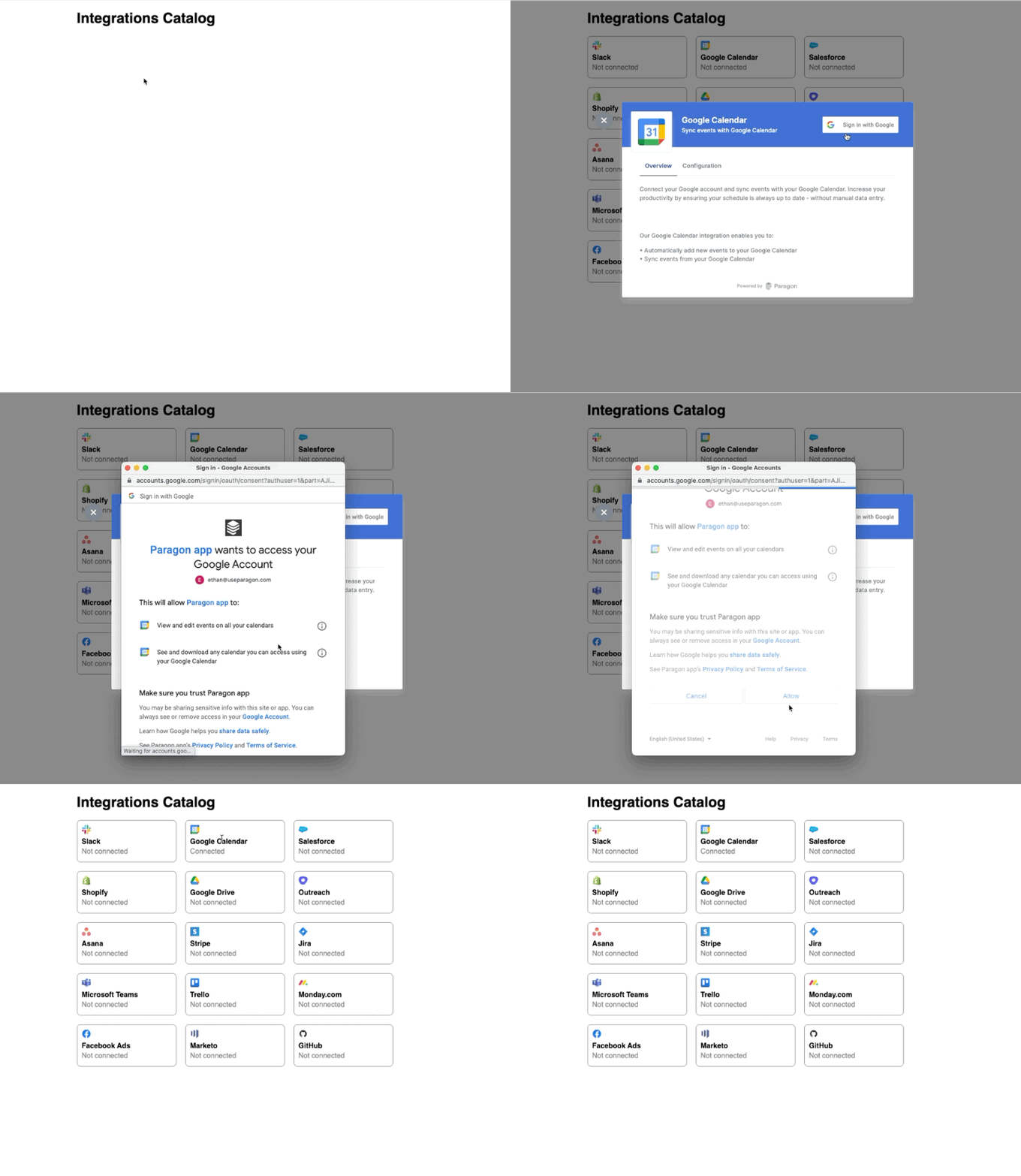
Prerequisites
- This guide embeds the Integration Catalog in a React.js app. React is not a requirement for using the SDK, but the tutorial steps will use React-specific functions to dynamically update the Catalog UI.
- This guide assumes that you’ve already installed the SDK and configured User Authentication. We will change your implementation slightly so that your React app can listen for the SDK events for loading and authenticating.
1. Add hooks for authenticating the Paragon User
First, define a hook used for SDK authentication. We’ll call thisuseParagonAuth.ts. Copy the following contents to this file:
Replace
PARAGON_PROJECT_ID with your Project ID in Paragon. You can find your Project ID in the Overview tab of any Integration within the dashboard.2. Displaying integrations
Next, we’ll show the list of integrations loaded from your project. Theparagon global is loaded as a stateful value, so when the SDK loads, the component will update accordingly:
paragon.getIntegrationMetadata to get all active integrations in your project, along with their names and icon URLs.
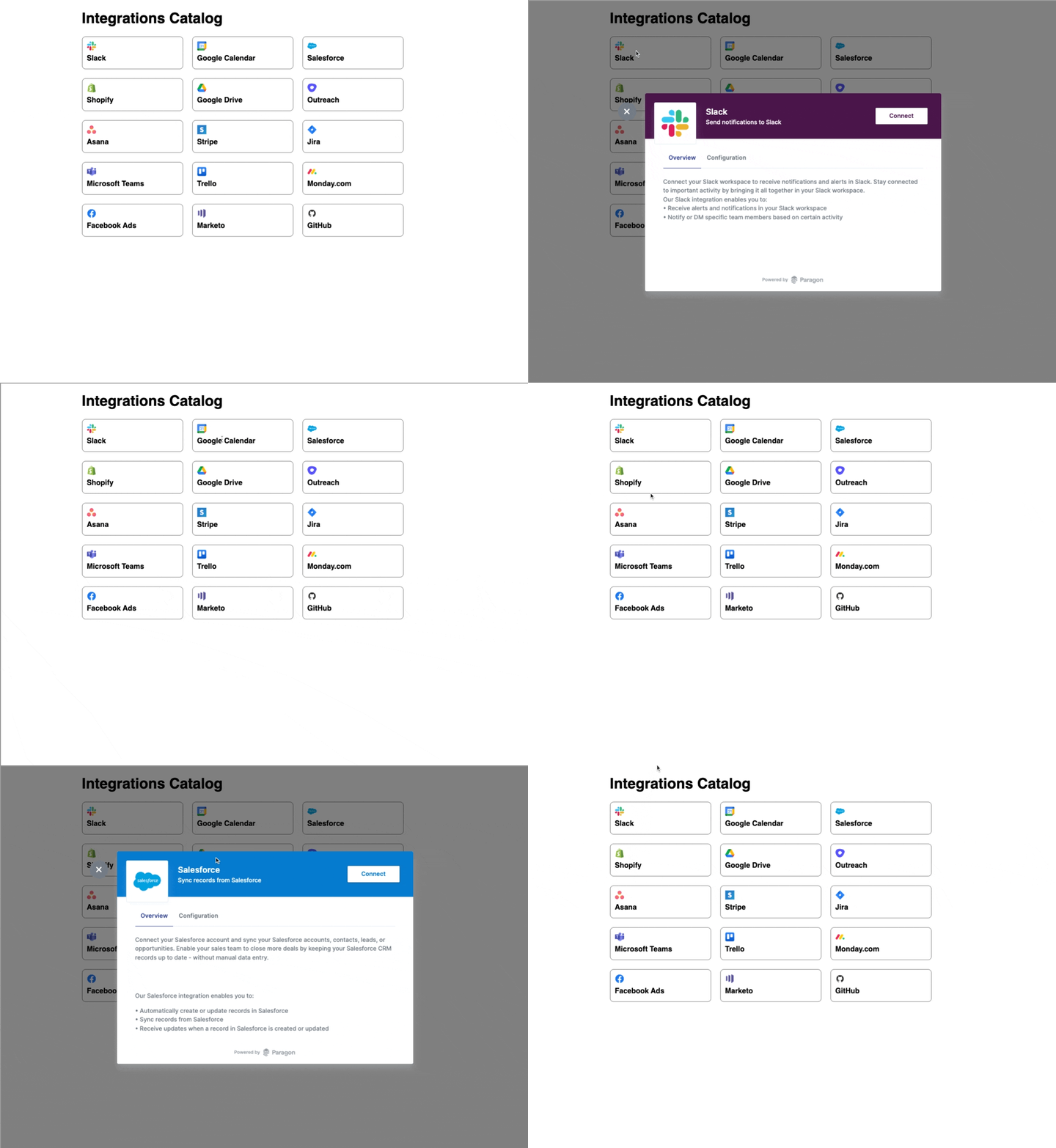
For every integration, we display their icons and names. We also set up an event handler to call paragon.connect with the integration.type when the element is clicked. This will display the Connect Portal over your app, prompting the user to connect an account to the specified integration.
Result:
3. Displaying account status
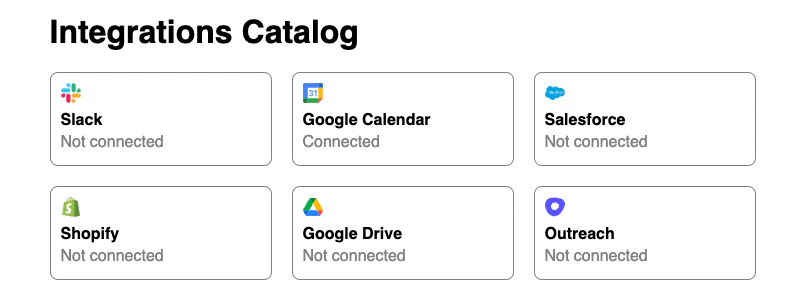
Next, we’ll update your integrations catalog to display your user’s account status for each integration within the element that shows the icon and name. We can get the account status usingparagon.getUser, which returns the current state of the authenticated user from the SDK, including their connected integrations and enabled workflows.
4. Adding subscriptions for account status changes
Finally, we want to make sure that the catalog components that we’ve created update automatically when the SDK handles a state change with one of our user’s integrations. Specifically, when a user connects or disconnects their account, we want the account status to reflect that immediately. To do this, we can useparagon.subscribe, which allows us to listen for global SDK events. We will listen for the events "onIntegrationInstall" and "onIntegrationUninstall" to detect when a user has connected or disconnected an account.
Recap
In this guide, you built an integrations catalog that you can embed in your app.- You defined 2 hooks:
useParagonGlobal(for mounting the Paragon SDK) anduseParagonAuth(for authenticating a user). - You used
paragon.getIntegrationMetadatato get all available integrations in the project with name and icon information. - You used
paragon.getUserto get the user’s account status. - You used
paragon.subscribeto listen for user account status changes to sync updates to your catalog UI.