A Klaviyo Account. You can create a test account here.
Authentication methods
Paragon supports two authentication methods for the Klaviyo integration. You choose one Application Type when you enable Klaviyo in the Paragon dashboard—that choice applies to every user connection for that integration.
OAuth 2.0 (recommended): Authorization Code flow with PKCE. This is the default for new Klaviyo integrations and is required for Klaviyo Marketplace app listings.
Private Key Authentication (legacy): End users connect with a Klaviyo private API key. Paragon documents this path as Basic Auth in the Connect Portal.
The Application Type is fixed per integration in the dashboard. It cannot be switched per connection with the Connect SDK—accountType is not supported for Klaviyo (Application Type integrations).
Existing connections that use private API keys continue to work after you enable OAuth for new projects. Paragon does not require migrating legacy keys, though Klaviyo recommends OAuth for new apps.
Configure OAuth 2.0 in the dashboard
With OAuth 2.0 selected as the Application Type, add the OAuth app your users will authorize against (often your own Klaviyo developer app):
Client ID and Client Secret from your Klaviyo OAuth app
Scopes—Klaviyo requires accounts:read at minimum. Typical Paragon integrations also request scopes for accounts, campaigns, events, lists, metrics, profiles, segments, subscriptions, and templates, depending on your workflows and ActionKit tools.
Paragon stores refresh tokens and issues access tokens (about one hour lifetime). API calls use Authorization: Bearer {access_token}.
Configure Private Key Authentication in the dashboard
With Private Key Authentication (legacy) selected, end users enter a Klaviyo private API key in the Connect Portal. Paragon sends requests with the Klaviyo-API-Key header.
Connecting with OAuth 2.0
When OAuth 2.0 is configured, your users connect through the standard Connect Portal authorization flow. After they authorize your Klaviyo app, you can use the Paragon SDK to call the Klaviyo API on their behalf—authentication is handled by Paragon.See the Klaviyo API documentation for their full API reference.
Connecting with Private Key Authentication (legacy)
Your users need a Klaviyo private API key to connect when Private Key Authentication is enabled for your integration.Users can find or create keys under Account > Settings > API keys in the Klaviyo Account dashboard.Once your users have connected their Klaviyo account, you can use the Paragon SDK to access the Klaviyo API on behalf of connected users.Any Klaviyo API endpoints can be accessed with the Paragon SDK as shown in this example.
// You can find your project ID in the Overview tab of any Integration// Authenticate the userparagon.authenticate(<ProjectId>, <UserToken>);// Create Listawait paragon.request("klaviyo", "/v2/lists", { method: "POST", body: { "list_name": "your_list_name" }});// Query Listsawait paragon.request("klaviyo", "/v2/lists", { method: "GET"});
Creating a Klaviyo private API key
Your end-users enter their Klaviyo private API key when they first connect to your application.To create a Klaviyo private API key:
Navigate to Accounts > App Configuration > Configure > API Keys, and click the blue “Create Private API Key” button.
Copy your private API key.
Paste your private API key in the Connect Portal to authenticate.
Building Klaviyo workflows
Once your Klaviyo account is connected, you can add steps to perform the following actions:
Create Campaign
Get Campaigns
Send Campaign
Create List
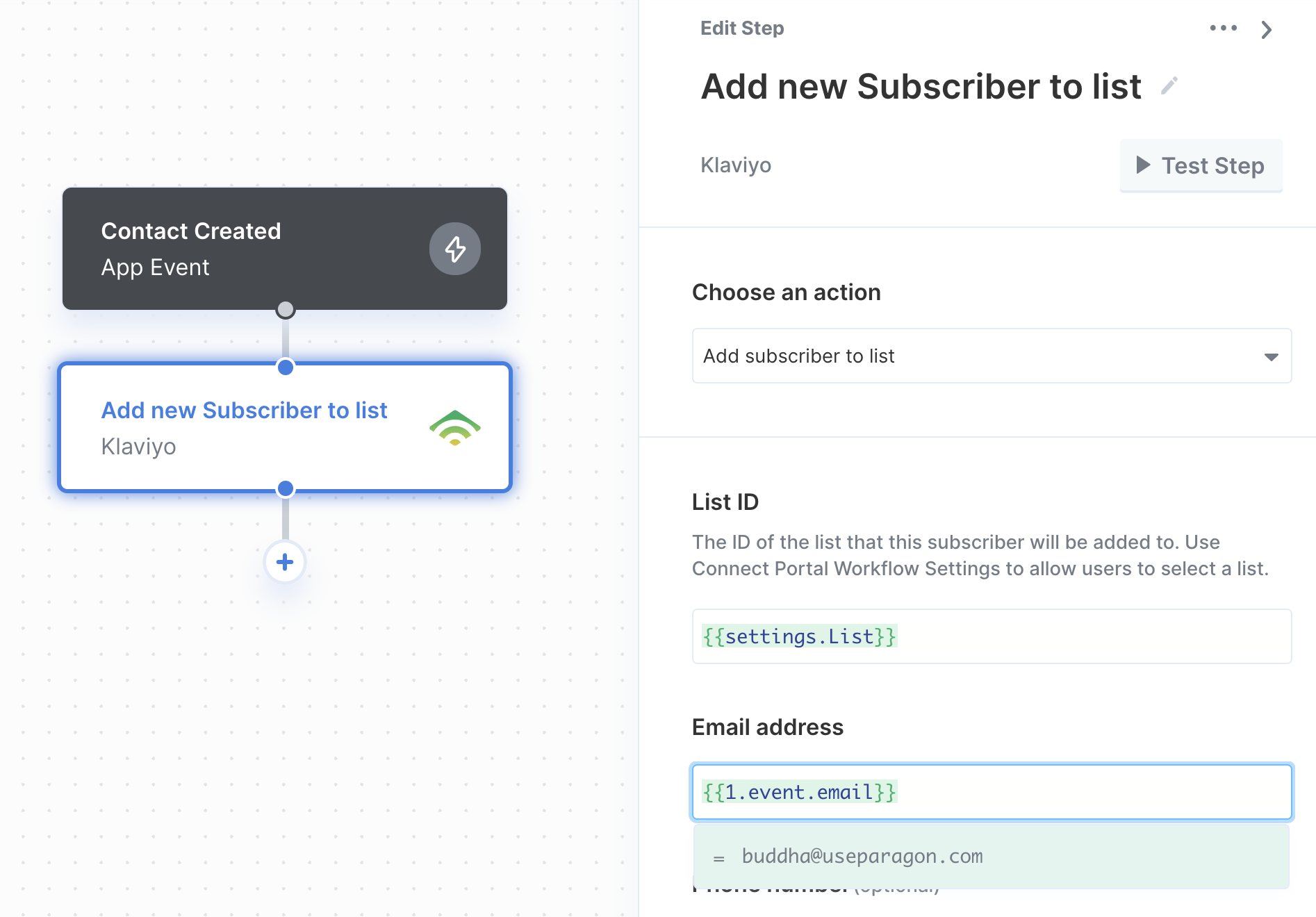
Add Subscriber to List
Remove Subscriber from List
Get Lists
Get List Subscribers
Get Profile
Update Profile
Create Template
Get Templates
Get Segments
Get Segment Subscribers
You can also use the Klaviyo Request step to access any of Klaviyo’s API endpoints without the authentication piece.When creating or updating campaigns and lists in Klaviyo, you can reference data from previous steps by typing {{ to invoke the variable menu.
{"docsConfig":{"theme":"mint","$schema":"https://mintlify.com/docs.json","name":"Paragon Documentation","colors":{"primary":"#6645e6","light":"#6747e7","dark":"#6645e6"},"logo":{"light":"https://mintcdn.com/paragon/VsFfcYgo5-Qm6khT/logo/light.svg?fit=max\u0026auto=format\u0026n=VsFfcYgo5-Qm6khT\u0026q=85\u0026s=348909bc26f6451e89f4010d965f6e3f","dark":"https://mintcdn.com/paragon/VsFfcYgo5-Qm6khT/logo/dark.svg?fit=max\u0026auto=format\u0026n=VsFfcYgo5-Qm6khT\u0026q=85\u0026s=94df13e90b5d4116e55d031d5583fa1b","href":"https://docs.useparagon.com/"},"favicon":"https://mintcdn.com/paragon/jHdUQ3U2jexiiVjS/favicon.png?fit=max\u0026auto=format\u0026n=jHdUQ3U2jexiiVjS\u0026q=85\u0026s=92cb5c619d517e9c751282890f36033e","api":{"playground":{"proxy":false}},"background":{"decoration":"gradient"},"navbar":{"links":[{"href":"https://dashboard.useparagon.com/signup","label":"Sign up"}],"primary":{"type":"button","label":"Book a demo","href":"https://www.useparagon.com/book-demo"}},"footer":{"links":[{"header":"Home","items":[{"label":"Home","href":"https://www.useparagon.com"},{"label":"Sign Up","href":"https://dashboard.useparagon.com/signup"},{"label":"Book Demo","href":"https://www.useparagon.com/book-demo"},{"label":"Pricing","href":"https://www.useparagon.com/pricing"},{"label":"Careers","href":"https://www.useparagon.com/careers"}]},{"header":"Resources","items":[{"label":"Blog","href":"https://www.useparagon.com/blog"},{"label":"Case Studies","href":"https://www.useparagon.com/customers"},{"label":"ActionKit Playground","href":"https://try.actions.useparagon.com"},{"label":"Sync Playground","href":"https://try.sync.useparagon.com"},{"label":"Product Tour","href":"https://www.useparagon.com/product-tour-landing"}]},{"header":"Legal","items":[{"label":"Privacy Policy","href":"https://www.useparagon.com/privacy-policy"},{"label":"Terms of Service","href":"https://www.useparagon.com/terms-of-service"},{"label":"Your Privacy Choices","href":"/optout"}]}]},"fonts":{"heading":{"family":"Helvetica Now Display Medium","weight":400,"source":"https://framerusercontent.com/assets/OKeqk0lRqQ5xtPOYZPiID295g.woff2","format":"woff2"}},"integrations":{"ga4":{"measurementId":"G-DH6VCLG1X6"},"gtm":{"tagId":"GTM-WCJFR4H"},"cookies":{"key":"paragon_docs_integrations_consent","value":"granted"}},"errors":{"404":{"redirect":false}},"styling":{"latex":true},"navigation":{"pages":[]}},"deployment":{"deploymentMetadataValue":{"subdomain":"paragon","hasAudioNarration":false,"actualSubdomain":"paragon","customDomains":["docs.useparagon.com"],"gitSource":{"type":"github","owner":"useparagon-internal","repo":"docs-mintlify","deployBranch":"main","contentDirectory":"","isPrivate":true,"mountPath":"","label":""},"feedback":{"edits":false,"thumbs":true},"entitlements":{"AI_CHAT":{"status":"ENABLED"},"REMOVE_BRANDING":{"status":"ENABLED"},"CONTEXTUAL_FEEDBACK":{"status":"ENABLED"},"CODE_SNIPPET_FEEDBACK":{"status":"ENABLED"},"WEB_MCP":{"status":"ENABLED"},"NARRATION":{"status":"ENABLED"}},"buildId":"6b036e2076d46e4caec42ffd","clientVersion":"0.0.4277","searchFilterCounts":[{"language":"default","tag":"ActionKit","count":1114},{"language":"default","tag":"Integrations Reference","count":1104},{"language":"default","tag":"Tools","count":863},{"language":"default","tag":"Triggers","count":147},{"language":"default","tag":"Integrations","count":128},{"language":"default","tag":"Integration Providers","count":128},{"language":"default","tag":"Managed Sync","count":68},{"language":"default","tag":"Platform","count":56},{"language":"default","tag":"Workflows","count":54},{"language":"default","tag":"Salesforce","count":51}]},"assistantConfig":{},"basePath":"","hasChatPermissions":true,"hasWebMcpPermissions":true,"toggles":[],"googleFontsInlined":false},"customCss":[{"filePath":"style.css","content":"#top-aligned-table td{vertical-align:top;padding:8px}#footer a[href=\"/optout\"]{overflow:auto;max-width:100%}footer>div{padding-top:4rem!important}a.nav-tabs-item[href=\"/resources/integrations\"]{margin-left:auto}div.nav-tabs{width:100%}"}]}
{"page":{"pagePath":"resources/integrations/klaviyo","slug":"/resources/integrations/klaviyo","pageMetadata":{"title":"Klaviyo","description":"Connect to your users' Klaviyo accounts.","icon":"https://cdn.useparagon.com/latest/dashboard/public/integrations/klaviyo.svg","href":"/resources/integrations/klaviyo"},"description":{"compiledSource":"\"use strict\";\nconst {jsx: _jsx} = arguments[0];\nconst {useMDXComponents: _provideComponents} = arguments[0];\nfunction _createMdxContent(props) {\n const _components = {\n p: \"p\",\n ..._provideComponents(),\n ...props.components\n };\n return _jsx(_components.p, {\n children: \"Connect to your users’ Klaviyo accounts.\"\n });\n}\nfunction MDXContent(props = {}) {\n const {wrapper: MDXLayout} = {\n ..._provideComponents(),\n ...props.components\n };\n return MDXLayout ? _jsx(MDXLayout, {\n ...props,\n children: _jsx(_createMdxContent, {\n ...props\n })\n }) : _createMdxContent(props);\n}\nreturn {\n default: MDXContent\n};\n","frontmatter":{},"scope":{}},"pageType":"default","mdx":{"mdxSource":{"compiledSource":"\"use strict\";const{Fragment:_Fragment,jsx:_jsx,jsxs:_jsxs}=arguments[0];const{useMDXComponents:_provideComponents}=arguments[0];const IntegrationsCompatibility=({workflows=true,actionkit=false,proxy=true,managedSync=false,authType=`Basic Auth`,integrationName:integrationNameProp,integrationSlug:integrationSlugProp})=>{const _components={a:`a`,..._provideComponents()};const FEATURE_REQUEST_ENDPOINT=`https://red-frost-cc95.black-glade-c567.workers.dev`;const FEATURE_REQUEST_HEADERS={\"Content-Type\":`application/json`};const SESSION_VOTE_PREFIX=`paragon_compat_vote:`;const PURPLE=`rgb(102, 69, 230)`;const slugifyFeature=label=>label.toLowerCase().replace(/\\s+/g,`-`).replace(/[^a-z0-9-]/g,``);const integrationKeyFromPathname=pathname=>{if(!pathname)return``;const match=pathname.match(/\\/(?:resources\\/)?integrations\\/([^/?#]+)/);return match?decodeURIComponent(match[1]).replace(/\\/$/,``):``};const voteStorageKey=(integrationKey,featureKey)=>`${SESSION_VOTE_PREFIX}${integrationKey}:${featureKey}`;const readVoteFromStorage=(integrationKey,featureKey)=>{if(typeof sessionStorage===`undefined`)return false;try{return sessionStorage.getItem(voteStorageKey(integrationKey,featureKey))===`1`}catch{return false}};const writeVoteToStorage=(integrationKey,featureKey)=>{try{sessionStorage.setItem(voteStorageKey(integrationKey,featureKey),`1`)}catch{}};const readPageTitleFallback=()=>{if(typeof document===`undefined`)return``;const h1=document.querySelector(`article h1`)||document.querySelector(`main h1`)||document.querySelector(`[class*=\"title\"] h1`)||document.querySelector(`h1`);const text=h1?.textContent?.trim();return text||``};const getRuntimeConfig=()=>{if(typeof window===`undefined`)return null;return window.__PARAGON_FEATURE_REQUEST__??null};const resolveEndpoint=()=>{const rt=getRuntimeConfig();if(rt?.endpoint)return String(rt.endpoint).trim();return String(FEATURE_REQUEST_ENDPOINT||``).trim()};const resolveHeaders=()=>{const rt=getRuntimeConfig();const base={...FEATURE_REQUEST_HEADERS,...rt?.headers\u0026\u0026typeof rt.headers===`object`?rt.headers:{}};return base};const isValidEmail=s=>/^[^\\s@]+@[^\\s@]+\\.[^\\s@]+$/.test(String(s).trim());const renderCompatCheckSvg=(sizePx=18)=>_jsx(`svg`,{xmlns:`http://www.w3.org/2000/svg`,viewBox:`0 0 640 640`,fill:PURPLE,style:{width:`${sizePx}px`,height:`${sizePx}px`,flexShrink:0,display:`block`,verticalAlign:`middle`,margin:`0 auto`},\"aria-hidden\":true,children:_jsx(`path`,{d:`M320 576C178.6 576 64 461.4 64 320C64 178.6 178.6 64 320 64C461.4 64 576 178.6 576 320C576 461.4 461.4 576 320 576zM438 209.7C427.3 201.9 412.3 204.3 404.5 215L285.1 379.2L233 327.1C223.6 317.7 208.4 317.7 199.1 327.1C189.8 336.5 189.7 351.7 199.1 361L271.1 433C276.1 438 282.9 440.5 289.9 440C296.9 439.5 303.3 435.9 307.4 430.2L443.3 243.2C451.1 232.5 448.7 217.5 438 209.7z`})});const products=useMemo(()=>[{label:`Managed Sync`,value:managedSync},{label:`ActionKit`,value:actionkit},{label:`Workflows`,value:workflows},{label:`Proxy API`,value:proxy},{label:`Auth Type`,value:authType}],[actionkit,managedSync,workflows,proxy,authType]);const[mounted,setMounted]=useState(false);const[resolvedIntegrationKey,setResolvedIntegrationKey]=useState(()=>integrationSlugProp?.trim()||``);const[resolvedDisplayName,setResolvedDisplayName]=useState(()=>integrationNameProp?.trim()||`Integration`);const[inlineFormOpen,setInlineFormOpen]=useState(false);const[formFeature,setFormFeature]=useState({featureLabel:``,featureKey:``});const[email,setEmail]=useState(``);const[description,setDescription]=useState(``);const[submitting,setSubmitting]=useState(false);const[submitError,setSubmitError]=useState(``);const[voteClickError,setVoteClickError]=useState(``);const[voteLogging,setVoteLogging]=useState(false);const[loggingFeatureKey,setLoggingFeatureKey]=useState(``);const[,bumpVoteUi]=useState(0);const inlineCardRef=useRef(null);useEffect(()=>{setMounted(true);const path=typeof window!==`undefined`?window.location.pathname:``;const fromPath=integrationSlugProp?.trim()||integrationKeyFromPathname(path);setResolvedIntegrationKey(fromPath);const fromDom=readPageTitleFallback();const name=integrationNameProp?.trim()||fromDom||(fromPath?fromPath.replace(/-/g,` `):`Integration`);setResolvedDisplayName(name)},[integrationNameProp,integrationSlugProp]);const dismissInlineForm=useCallback(()=>{setInlineFormOpen(false);setSubmitError(``)},[]);const handleRequestClick=useCallback(async({featureLabel,featureKey})=>{setVoteClickError(``);const integrationKey=resolvedIntegrationKey||integrationKeyFromPathname(typeof window!==`undefined`?window.location.pathname:``);if(!integrationKey){setVoteClickError(`Could not determine integration. Set the integrationSlug prop on this page.`);return}if(readVoteFromStorage(integrationKey,featureKey)){return}setLoggingFeatureKey(featureKey);setVoteLogging(true);const votedAt=new Date().toISOString();const ctaPayload={integration_key:integrationKey,integration_name:resolvedDisplayName,feature_key:featureKey,feature_label:featureLabel,vote_phase:`cta_click`,voted_at:votedAt};try{const endpoint=resolveEndpoint();if(endpoint){const res=await fetch(endpoint,{method:`POST`,headers:resolveHeaders(),body:JSON.stringify(ctaPayload)});if(!res.ok){const text=await res.text().catch(()=>``);throw new Error(text||`Request failed (${res.status})`)}}else if(typeof console!==`undefined`\u0026\u0026console.warn){console.warn(`[IntegrationsCompatibility] FEATURE_REQUEST_ENDPOINT is empty; vote not sent. Set endpoint or window.__PARAGON_FEATURE_REQUEST__.`)}writeVoteToStorage(integrationKey,featureKey);bumpVoteUi(v=>v+1);setFormFeature({featureLabel,featureKey});setEmail(``);setDescription(``);setSubmitError(``);setInlineFormOpen(true)}catch(err){setVoteClickError(err instanceof Error?err.message:`Could not log your vote. Please try again.`)}finally{setVoteLogging(false);setLoggingFeatureKey(``)}},[resolvedIntegrationKey,resolvedDisplayName]);useEffect(()=>{if(!inlineFormOpen)return undefined;const id=window.setTimeout(()=>{inlineCardRef.current?.scrollIntoView?.({behavior:`smooth`,block:`nearest`})},80);return()=>window.clearTimeout(id)},[inlineFormOpen]);const submitEnrichment=useCallback(async()=>{const trimmed=email.trim();if(!isValidEmail(trimmed)){setSubmitError(`Please enter a valid work email.`);return}const integrationKey=resolvedIntegrationKey||integrationKeyFromPathname(typeof window!==`undefined`?window.location.pathname:``);if(!integrationKey){setSubmitError(`Could not determine integration. Set the integrationSlug prop on this page.`);return}const{featureKey,featureLabel}=formFeature;const endpoint=resolveEndpoint();const enrichedAt=new Date().toISOString();const payload={integration_key:integrationKey,integration_name:resolvedDisplayName,feature_key:featureKey,feature_label:featureLabel,vote_phase:`enrichment`,email:trimmed,description:description.trim()||undefined,voted_at:enrichedAt,enriched_at:enrichedAt};setSubmitting(true);setSubmitError(``);try{if(endpoint){const res=await fetch(endpoint,{method:`POST`,headers:resolveHeaders(),body:JSON.stringify(payload)});if(!res.ok){const text=await res.text().catch(()=>``);throw new Error(text||`Request failed (${res.status})`)}}else if(typeof console!==`undefined`\u0026\u0026console.warn){console.warn(`[IntegrationsCompatibility] FEATURE_REQUEST_ENDPOINT is empty; enrichment not sent. Set endpoint or window.__PARAGON_FEATURE_REQUEST__.`)}setInlineFormOpen(false);setEmail(``);setDescription(``)}catch(err){setSubmitError(err instanceof Error?err.message:`Something went wrong. Please try again.`)}finally{setSubmitting(false)}},[email,description,formFeature,resolvedDisplayName,resolvedIntegrationKey]);const renderCompatProductCell=({product,integrationKey,onRequestClick,alignWide,voteLogging,loggingFeatureKey})=>{const isAuthType=product.label===`Auth Type`;const href=typeof product.value===`string`\u0026\u0026!isAuthType?product.value:null;const featureKey=slugifyFeature(product.label);const alreadyVoted=!isAuthType\u0026\u0026integrationKey\u0026\u0026!href\u0026\u0026!product.value?readVoteFromStorage(integrationKey,featureKey):false;const unsupported=!isAuthType\u0026\u0026!href\u0026\u0026!product.value;const cellInner=isAuthType?product.value:href?_jsxs(`div`,{style:{display:`inline-flex`,alignItems:`center`,gap:`6px`},children:[renderCompatCheckSvg(),_jsxs(_components.a,{href,className:`compat-doc-link`,children:[`Docs`,_jsx(`svg`,{width:`11`,height:`11`,viewBox:`0 0 24 24`,fill:`none`,stroke:`currentColor`,strokeWidth:`2`,strokeLinecap:`round`,strokeLinejoin:`round`,children:_jsx(`path`,{d:`M7 17l9.2-9.2M17 17V7H7`})})]})]}):product.value?renderCompatCheckSvg():alreadyVoted?_jsx(`span`,{style:{fontSize:`12px`,fontWeight:500,color:`rgba(55, 55, 58, 0.85)`},className:`compat-requested-text`,children:`Requested`}):_jsxs(`button`,{type:`button`,className:`compat-pill`,disabled:voteLogging\u0026\u0026loggingFeatureKey===featureKey,onClick:()=>onRequestClick({featureLabel:product.label,featureKey}),style:{cursor:voteLogging\u0026\u0026loggingFeatureKey===featureKey?`not-allowed`:`pointer`,opacity:voteLogging\u0026\u0026loggingFeatureKey===featureKey?.65:1},children:[_jsxs(`svg`,{className:`compat-pill-plus`,width:`12`,height:`12`,viewBox:`0 0 24 24`,fill:`none`,stroke:`currentColor`,strokeWidth:`3`,strokeLinecap:`round`,strokeLinejoin:`round`,style:{color:PURPLE},\"aria-hidden\":true,children:[_jsx(`line`,{x1:`12`,y1:`5`,x2:`12`,y2:`19`}),_jsx(`line`,{x1:`5`,y1:`12`,x2:`19`,y2:`12`})]}),voteLogging\u0026\u0026loggingFeatureKey===featureKey?`Submitting...`:`Request`]});if(alignWide){return _jsx(`div`,{style:{fontSize:`13px`,padding:`8px 8px`,minHeight:unsupported||alreadyVoted?`40px`:undefined,flex:1,display:`flex`,alignItems:`center`,justifyContent:`center`,textAlign:`center`},children:cellInner})}return _jsx(`span`,{style:{fontSize:`13px`,width:`80px`,textAlign:`center`,display:`inline-flex`,justifyContent:`center`},children:cellInner})};return _jsxs(`div`,{style:{backgroundColor:`transparent`,border:`0px solid rgba(225, 225, 229, 1)`,borderRadius:`12px`,padding:`0px 0px`,overflow:`hidden`},children:[_jsx(`style`,{children:`\n .compat-wide { display: flex; }\n .compat-narrow { display: none; }\n @media (max-width: 640px) {\n .compat-wide { display: none !important; }\n .compat-narrow { display: flex !important; }\n }\n \n .compat-doc-link {\n color: rgb(102, 69, 230);\n font-weight: 500;\n font-size: 13px;\n display: inline-flex;\n align-items: center;\n gap: 2px;\n text-decoration: none;\n }\n .compat-doc-link:hover {\n text-decoration: underline;\n text-underline-offset: 2px;\n }\n .dark .compat-doc-link {\n color: rgb(162, 140, 255);\n }\n\n .compat-pill {\n display: inline-flex;\n align-items: center;\n justify-content: center;\n gap: 4px;\n box-sizing: border-box;\n min-height: 32px;\n padding: 6px 12px;\n border-radius: 999px;\n border: 1px solid rgba(0, 0, 0, 0.12);\n background-color: rgba(250, 250, 249, 1);\n font-size: 12px;\n font-weight: 500;\n color: rgba(35, 35, 38, 1);\n font-family: inherit;\n line-height: 1.2;\n width: auto;\n text-decoration: none;\n margin: 0;\n transition: box-shadow 0.15s ease, background-color 0.15s ease, border-color 0.15s ease, color 0.15s ease;\n }\n .compat-pill:hover:not(:disabled) {\n box-shadow: 0 2px 8px rgba(0, 0, 0, 0.1);\n }\n \n a.compat-doc-link {\n text-decoration: underline !important;\n text-underline-offset: 2px !important;\n border-bottom: none !important;\n box-shadow: none !important;\n background: none !important;\n }\n a.compat-doc-link:hover {\n opacity: 0.8;\n }\n\n .dark .compat-pill {\n background-color: rgba(255, 255, 255, 0.05);\n border-color: rgba(255, 255, 255, 0.1);\n color: rgba(255, 255, 255, 0.85);\n }\n .dark .compat-pill:hover:not(:disabled) {\n box-shadow: 0 2px 8px rgba(0, 0, 0, 0.3);\n background-color: rgba(255, 255, 255, 0.1);\n }\n .dark .compat-pill-plus {\n color: rgba(255, 255, 255, 0.85) !important;\n }\n .dark .compat-requested-text {\n color: rgba(255, 255, 255, 0.6) !important;\n }\n\n .compat-form-card {\n margin-top: 24px;\n width: 100%;\n box-sizing: border-box;\n background-color: #fff;\n border-radius: 16px;\n border: 1px solid rgba(0, 0, 0, 0.1);\n box-shadow: 0 8px 24px rgba(0,0,0,0.06);\n padding: 24px;\n }\n .dark .compat-form-card {\n background-color: #0f1114;\n border-color: rgba(255, 255, 255, 0.1);\n box-shadow: 0 8px 24px rgba(0,0,0,0.4);\n }\n\n .compat-form-close-btn {\n flex-shrink: 0;\n display: inline-flex;\n align-items: center;\n justify-content: center;\n width: 36px;\n height: 36px;\n margin: 0;\n padding: 0;\n border-radius: 8px;\n background: #fff;\n color: rgba(35, 35, 38, 0.75);\n font-size: 24px;\n line-height: 1;\n font-family: inherit;\n border: none;\n }\n .dark .compat-form-close-btn {\n background: rgba(255,255,255,0.05);\n color: rgba(255,255,255,0.7);\n }\n\n .compat-form-title {\n margin: 0 0 16px;\n font-size: 20px;\n font-weight: 700;\n color: #111;\n }\n .dark .compat-form-title {\n color: rgba(255, 255, 255, 0.95);\n }\n\n .compat-form-text {\n display: block;\n margin: 0 0 20px;\n font-size: 14px;\n color: rgba(55, 55, 58, 0.72);\n line-height: 1.5;\n }\n .dark .compat-form-text {\n color: rgba(255, 255, 255, 0.6);\n }\n\n .compat-form-label {\n display: flex;\n flex-direction: column;\n gap: 6px;\n font-size: 13px;\n font-weight: 500;\n color: #333;\n }\n .dark .compat-form-label {\n color: rgba(255, 255, 255, 0.85);\n }\n\n .compat-form-input-readonly {\n width: 100%;\n box-sizing: border-box;\n padding: 10px 12px;\n border-radius: 8px;\n border: 1px solid rgba(0, 0, 0, 0.08);\n background-color: rgba(250, 248, 245, 0.95);\n font-size: 14px;\n color: rgba(35, 35, 38, 0.95);\n }\n .dark .compat-form-input-readonly {\n background-color: rgba(255, 255, 255, 0.05);\n border-color: rgba(255, 255, 255, 0.1);\n color: rgba(255, 255, 255, 0.7);\n }\n\n .compat-form-input {\n width: 100%;\n box-sizing: border-box;\n padding: 10px 12px;\n border-radius: 8px;\n border: 1px solid rgba(0, 0, 0, 0.15);\n background-color: #fff;\n font-size: 14px;\n font-family: inherit;\n color: #111;\n }\n .dark .compat-form-input {\n background-color: rgba(255, 255, 255, 0.05);\n border-color: rgba(255, 255, 255, 0.15);\n color: rgba(255, 255, 255, 0.95);\n }\n\n .compat-form-submit {\n padding: 10px 16px;\n border-radius: 8px;\n border: 1px solid rgba(0, 0, 0, 0.15);\n background: #fff;\n font-size: 14px;\n font-weight: 700;\n font-family: inherit;\n color: #111;\n }\n .dark .compat-form-submit {\n background: rgba(255, 255, 255, 0.1);\n border-color: rgba(255, 255, 255, 0.2);\n color: rgba(255, 255, 255, 0.95);\n }\n .compat-form-tag {\n display: inline-flex;\n align-items: center;\n gap: 6px;\n padding: 6px 10px;\n border-radius: 8px;\n background-color: rgba(102, 69, 230, 0.12);\n border: 1px solid rgba(102, 69, 230, 0.35);\n color: rgb(102, 69, 230);\n font-size: 12px;\n font-weight: 600;\n }\n .dark .compat-form-tag {\n background-color: rgba(162, 140, 255, 0.15);\n border-color: rgba(162, 140, 255, 0.4);\n color: rgb(180, 160, 255);\n }\n `}),_jsx(`div`,{className:`compat-wide`,style:{flexDirection:`row`,gap:`0px`},children:products.map(f=>_jsxs(`div`,{style:{flex:1,minWidth:0,textAlign:`center`,display:`flex`,flexDirection:`column`},children:[_jsx(`div`,{style:{fontSize:`13px`,fontWeight:500,padding:`6px 8px`,borderBottom:`1px solid rgba(102, 69, 230, 0.15)`,overflow:`hidden`,textOverflow:`ellipsis`,whiteSpace:`nowrap`,textAlign:`center`},children:f.label}),renderCompatProductCell({product:f,integrationKey:mounted?resolvedIntegrationKey:``,onRequestClick:handleRequestClick,alignWide:true,voteLogging,loggingFeatureKey})]},f.label))}),_jsxs(`div`,{className:`compat-narrow`,style:{flexDirection:`column`,gap:`0px`},children:[_jsxs(`div`,{style:{display:`flex`,justifyContent:`space-between`,borderBottom:`1px solid rgba(102, 69, 230, 0.15)`,padding:`6px 0`},children:[_jsx(`span`,{style:{fontSize:`13px`,fontWeight:500},children:`Product`}),_jsx(`span`,{style:{fontSize:`13px`,fontWeight:500,width:`80px`,textAlign:`center`},children:`Supported`})]}),products.map(f=>_jsxs(`div`,{style:{display:`flex`,justifyContent:`space-between`,alignItems:`center`,padding:`5px 0`},children:[_jsx(`span`,{style:{fontSize:`13px`},children:f.label}),renderCompatProductCell({product:f,integrationKey:mounted?resolvedIntegrationKey:``,onRequestClick:handleRequestClick,alignWide:false,voteLogging,loggingFeatureKey})]},f.label))]}),voteClickError?_jsx(`p`,{style:{margin:`16px 0 0`,fontSize:`13px`,color:`#b42318`},role:`alert`,children:voteClickError}):null,inlineFormOpen?_jsxs(`div`,{ref:inlineCardRef,role:`region`,\"aria-labelledby\":`compat-feature-request-title`,className:`compat-form-card`,children:[_jsxs(`div`,{style:{display:`flex`,flexDirection:`row`,alignItems:`center`,justifyContent:`space-between`,gap:`12px`,marginBottom:`16px`},children:[_jsx(`div`,{className:`compat-form-tag`,children:`Feature request`}),_jsx(`button`,{type:`button`,onClick:dismissInlineForm,disabled:submitting,\"aria-label\":`Close feature request form`,className:`compat-form-close-btn`,style:{cursor:submitting?`not-allowed`:`pointer`},children:_jsx(`span`,{\"aria-hidden\":true,children:`×`})})]}),_jsxs(`h2`,{id:`compat-feature-request-title`,className:`compat-form-title`,children:[`Request support for `,formFeature.featureLabel]}),_jsx(`p`,{className:`compat-form-text`,children:`Your vote has been recorded. Add your email and an optional note and we'll notify you when support is added.`}),_jsxs(`div`,{style:{display:`flex`,flexDirection:`column`,gap:`16px`},children:[_jsxs(`label`,{className:`compat-form-label`,children:[`Integration`,_jsx(`input`,{type:`text`,readOnly:true,value:resolvedDisplayName,className:`compat-form-input-readonly`,tabIndex:-1})]}),_jsxs(`label`,{className:`compat-form-label`,children:[`Feature`,_jsx(`input`,{type:`text`,readOnly:true,value:formFeature.featureLabel,className:`compat-form-input-readonly`,tabIndex:-1})]}),_jsxs(`label`,{className:`compat-form-label`,children:[`Work email`,_jsx(`input`,{type:`email`,name:`email`,autoComplete:`email`,placeholder:[`you`,`company.com`].join(`@`),value:email,onChange:e=>setEmail(e.target.value),className:`compat-form-input`,disabled:submitting})]}),_jsxs(`label`,{className:`compat-form-label`,children:[`Describe your use case (optional)`,_jsx(`textarea`,{placeholder:`What would you build if this were supported?`,value:description,onChange:e=>setDescription(e.target.value),rows:4,className:`compat-form-input`,style:{resize:`vertical`,minHeight:`96px`},disabled:submitting})]})]}),submitError?_jsx(`p`,{style:{margin:`14px 0 0`,fontSize:`13px`,color:`#b42318`},role:`alert`,children:submitError}):null,_jsx(`div`,{style:{display:`flex`,justifyContent:`flex-end`,gap:`10px`,marginTop:`22px`,flexWrap:`wrap`},children:_jsx(`button`,{type:`button`,onClick:submitEnrichment,disabled:submitting,className:`compat-form-submit`,style:{cursor:submitting?`not-allowed`:`pointer`},children:submitting?`Submitting…`:`Submit details`})})]}):null]})};function _createMdxContent(props){const _components={a:`a`,code:`code`,li:`li`,ol:`ol`,p:`p`,pre:`pre`,span:`span`,strong:`strong`,ul:`ul`,..._provideComponents(),...props.components},{CodeBlock,Frame,Heading,OptimizedImage,Warning,_MdxComponentBoundary}=_components;if(!CodeBlock)_missingMdxReference(`CodeBlock`,true);if(!Frame)_missingMdxReference(`Frame`,true);if(!Heading)_missingMdxReference(`Heading`,true);if(!OptimizedImage)_missingMdxReference(`OptimizedImage`,true);if(!Warning)_missingMdxReference(`Warning`,true);if(!_MdxComponentBoundary)_missingMdxReference(`_MdxComponentBoundary`,true);return _jsxs(_Fragment,{children:[_jsx(_MdxComponentBoundary,{name:`IntegrationsCompatibility`,children:_jsx(IntegrationsCompatibility,{workflows:true,actionkit:`/actionkit/integrations/klaviyo`,proxy:true,managedSync:false,authType:`OAuth 2.0, Basic Auth`})}),`\n`,_jsx(Heading,{level:`2`,id:`prerequisites`,children:`Prerequisites`}),`\n`,_jsxs(_components.ul,{children:[`\n`,_jsxs(_components.li,{children:[`A Klaviyo Account. You can create a test account `,_jsx(_components.a,{href:`https://www.klaviyo.com/`,children:`here`}),`.`]}),`\n`]}),`\n`,_jsx(Heading,{level:`2`,id:`authentication-methods`,children:`Authentication methods`}),`\n`,_jsxs(_components.p,{children:[`Paragon supports two authentication methods for the Klaviyo integration. You choose one `,_jsx(_components.strong,{children:`Application Type`}),` when you enable Klaviyo in the `,_jsx(_components.a,{href:`https://dashboard.useparagon.com`,children:`Paragon dashboard`}),`—that choice applies to every user connection for that integration.`]}),`\n`,_jsxs(_components.ul,{children:[`\n`,_jsxs(_components.li,{children:[_jsx(_components.strong,{children:`OAuth 2.0`}),` (recommended): Authorization Code flow with PKCE. This is the default for new Klaviyo integrations and is required for Klaviyo Marketplace app listings.`]}),`\n`,_jsxs(_components.li,{children:[_jsx(_components.strong,{children:`Private Key Authentication (legacy)`}),`: End users connect with a Klaviyo private API key. Paragon documents this path as `,_jsx(_components.strong,{children:`Basic Auth`}),` in the Connect Portal.`]}),`\n`]}),`\n`,_jsx(Warning,{children:_jsxs(_components.p,{children:[`The Application Type is fixed per integration in the dashboard. It cannot be switched per connection with the Connect SDK—`,_jsx(_components.code,{children:`accountType`}),` is not supported for Klaviyo (Application Type integrations).`]})}),`\n`,_jsx(_components.p,{children:`Existing connections that use private API keys continue to work after you enable OAuth for new projects. Paragon does not require migrating legacy keys, though Klaviyo recommends OAuth for new apps.`}),`\n`,_jsx(Heading,{level:`3`,id:`configure-oauth-2-0-in-the-dashboard`,children:`Configure OAuth 2.0 in the dashboard`}),`\n`,_jsxs(_components.p,{children:[`With `,_jsx(_components.strong,{children:`OAuth 2.0`}),` selected as the Application Type, add the OAuth app your users will authorize against (often your own Klaviyo developer app):`]}),`\n`,_jsxs(_components.ul,{children:[`\n`,_jsxs(_components.li,{children:[_jsx(_components.strong,{children:`Client ID`}),` and `,_jsx(_components.strong,{children:`Client Secret`}),` from your Klaviyo OAuth app`]}),`\n`,_jsxs(_components.li,{children:[_jsx(_components.strong,{children:`Scopes`}),`—Klaviyo requires `,_jsx(_components.code,{children:`accounts:read`}),` at minimum. Typical Paragon integrations also request scopes for accounts, campaigns, events, lists, metrics, profiles, segments, subscriptions, and templates, depending on your workflows and ActionKit tools.`]}),`\n`]}),`\n`,_jsxs(_components.p,{children:[`Paragon stores refresh tokens and issues access tokens (about one hour lifetime). API calls use `,_jsx(_components.code,{children:`Authorization: Bearer {access_token}`}),`.`]}),`\n`,_jsx(Heading,{level:`3`,id:`configure-private-key-authentication-in-the-dashboard`,children:`Configure Private Key Authentication in the dashboard`}),`\n`,_jsxs(_components.p,{children:[`With `,_jsx(_components.strong,{children:`Private Key Authentication (legacy)`}),` selected, end users enter a Klaviyo private API key in the Connect Portal. Paragon sends requests with the `,_jsx(_components.code,{children:`Klaviyo-API-Key`}),` header.`]}),`\n`,_jsx(Heading,{level:`2`,id:`connecting-with-oauth-2-0`,children:`Connecting with OAuth 2.0`}),`\n`,_jsxs(_components.p,{children:[`When OAuth 2.0 is configured, your users connect through the standard `,_jsx(_components.a,{href:`/getting-started/displaying-the-connect-portal`,children:`Connect Portal`}),` authorization flow. After they authorize your Klaviyo app, you can use the Paragon SDK to call the Klaviyo API on their behalf—authentication is handled by Paragon.`]}),`\n`,_jsxs(_components.p,{children:[`See the Klaviyo `,_jsx(_components.a,{href:`https://developers.klaviyo.com/en/reference/api_overview`,children:`API documentation`}),` for their full API reference.`]}),`\n`,_jsx(Heading,{level:`2`,id:`connecting-with-private-key-authentication-legacy`,children:`Connecting with Private Key Authentication (legacy)`}),`\n`,_jsxs(_components.p,{children:[`Your users need a Klaviyo `,_jsx(_components.strong,{children:`private API key`}),` to connect when Private Key Authentication is enabled for your integration.`]}),`\n`,_jsxs(_components.p,{children:[`Users can find or create keys under `,_jsx(_components.strong,{children:`Account > Settings > API keys`}),` in the `,_jsx(_components.a,{href:`https://www.klaviyo.com/account#api-keys-tab`,children:`Klaviyo Account dashboard`}),`.`]}),`\n`,_jsx(_components.p,{children:`Once your users have connected their Klaviyo account, you can use the Paragon SDK to access the Klaviyo API on behalf of connected users.`}),`\n`,_jsx(_components.p,{children:`Any Klaviyo API endpoints can be accessed with the Paragon SDK as shown in this example.`}),`\n`,_jsx(CodeBlock,{filename:``,numberOfLines:`16`,language:`javascript`,children:_jsx(_components.pre,{className:`shiki shiki-themes github-light-default dark-plus`,style:{backgroundColor:`#ffffff`,\"--shiki-dark-bg\":`#0B0C0E`,color:`#1f2328`,\"--shiki-dark\":`#D4D4D4`},language:`javascript`,children:_jsxs(_components.code,{language:`javascript`,numberOfLines:`16`,children:[_jsx(_components.span,{className:`line`,children:_jsx(_components.span,{style:{color:`#6E7781`,\"--shiki-dark\":`#6A9955`},children:`// You can find your project ID in the Overview tab of any Integration`})}),`\n`,_jsx(_components.span,{className:`line`}),`\n`,_jsx(_components.span,{className:`line`,children:_jsx(_components.span,{style:{color:`#6E7781`,\"--shiki-dark\":`#6A9955`},children:`// Authenticate the user`})}),`\n`,_jsxs(_components.span,{className:`line`,children:[_jsx(_components.span,{style:{color:`#1F2328`,\"--shiki-dark\":`#9CDCFE`},children:`paragon`}),_jsx(_components.span,{style:{color:`#1F2328`,\"--shiki-dark\":`#D4D4D4`},children:`.`}),_jsx(_components.span,{style:{color:`#8250DF`,\"--shiki-dark\":`#DCDCAA`},children:`authenticate`}),_jsx(_components.span,{style:{color:`#1F2328`,\"--shiki-dark\":`#D4D4D4`},children:`(`}),_jsx(_components.span,{style:{color:`#1F2328`,\"--shiki-dark\":`#808080`},children:`\u003c`}),_jsx(_components.span,{style:{color:`#116329`,\"--shiki-dark\":`#4EC9B0`},children:`ProjectId`}),_jsx(_components.span,{style:{color:`#1F2328`,\"--shiki-dark\":`#808080`},children:`>`}),_jsx(_components.span,{style:{color:`#1F2328`,\"--shiki-dark\":`#D4D4D4`},children:`, `}),_jsx(_components.span,{style:{color:`#1F2328`,\"--shiki-dark\":`#808080`},children:`\u003c`}),_jsx(_components.span,{style:{color:`#116329`,\"--shiki-dark\":`#4EC9B0`},children:`UserToken`}),_jsx(_components.span,{style:{color:`#1F2328`,\"--shiki-dark\":`#808080`},children:`>`}),_jsx(_components.span,{style:{color:`#1F2328`,\"--shiki-dark\":`#D4D4D4`},children:`);`})]}),`\n`,_jsx(_components.span,{className:`line`,children:_jsx(_components.span,{style:{color:`#1F2328`,\"--shiki-dark\":`#D4D4D4`},children:` `})}),`\n`,_jsx(_components.span,{className:`line`,children:_jsx(_components.span,{style:{color:`#1F2328`,\"--shiki-dark\":`#D4D4D4`},children:`// Create List`})}),`\n`,_jsxs(_components.span,{className:`line`,children:[_jsx(_components.span,{style:{color:`#1F2328`,\"--shiki-dark\":`#D4D4D4`},children:`await paragon.request(\"klaviyo\", \"/v2/lists\", `}),_jsx(_components.span,{style:{color:`#CF222E`,\"--shiki-dark\":`#569CD6`},children:`{`})]}),`\n`,_jsxs(_components.span,{className:`line`,children:[_jsx(_components.span,{style:{color:`#1F2328`,\"--shiki-dark\":`#9CDCFE`},children:` method`}),_jsx(_components.span,{style:{color:`#1F2328`,\"--shiki-dark\":`#D4D4D4`},children:`: `}),_jsx(_components.span,{style:{color:`#0A3069`,\"--shiki-dark\":`#CE9178`},children:`\"POST\"`}),_jsx(_components.span,{style:{color:`#1F2328`,\"--shiki-dark\":`#D4D4D4`},children:`,`})]}),`\n`,_jsxs(_components.span,{className:`line`,children:[_jsx(_components.span,{style:{color:`#1F2328`,\"--shiki-dark\":`#9CDCFE`},children:` body`}),_jsx(_components.span,{style:{color:`#1F2328`,\"--shiki-dark\":`#D4D4D4`},children:`: { `}),_jsx(_components.span,{style:{color:`#0A3069`,\"--shiki-dark\":`#CE9178`},children:`\"list_name\"`}),_jsx(_components.span,{style:{color:`#1F2328`,\"--shiki-dark\":`#9CDCFE`},children:`:`}),_jsx(_components.span,{style:{color:`#0A3069`,\"--shiki-dark\":`#CE9178`},children:` \"your_list_name\"`}),_jsx(_components.span,{style:{color:`#1F2328`,\"--shiki-dark\":`#D4D4D4`},children:` }`})]}),`\n`,_jsxs(_components.span,{className:`line`,children:[_jsx(_components.span,{style:{color:`#CF222E`,\"--shiki-dark\":`#569CD6`},children:`}`}),_jsx(_components.span,{style:{color:`#1F2328`,\"--shiki-dark\":`#D4D4D4`},children:`);`})]}),`\n`,_jsx(_components.span,{className:`line`}),`\n`,_jsx(_components.span,{className:`line`}),`\n`,_jsx(_components.span,{className:`line`,children:_jsx(_components.span,{style:{color:`#1F2328`,\"--shiki-dark\":`#D4D4D4`},children:`// Query Lists`})}),`\n`,_jsxs(_components.span,{className:`line`,children:[_jsx(_components.span,{style:{color:`#1F2328`,\"--shiki-dark\":`#D4D4D4`},children:`await paragon.request(\"klaviyo\", \"/v2/lists\", `}),_jsx(_components.span,{style:{color:`#CF222E`,\"--shiki-dark\":`#569CD6`},children:`{`})]}),`\n`,_jsxs(_components.span,{className:`line`,children:[_jsx(_components.span,{style:{color:`#1F2328`,\"--shiki-dark\":`#9CDCFE`},children:` method`}),_jsx(_components.span,{style:{color:`#1F2328`,\"--shiki-dark\":`#D4D4D4`},children:`: `}),_jsx(_components.span,{style:{color:`#0A3069`,\"--shiki-dark\":`#CE9178`},children:`\"GET\"`})]}),`\n`,_jsxs(_components.span,{className:`line`,children:[_jsx(_components.span,{style:{color:`#CF222E`,\"--shiki-dark\":`#569CD6`},children:`}`}),_jsx(_components.span,{style:{color:`#1F2328`,\"--shiki-dark\":`#D4D4D4`},children:`);`})]}),`\n`]})})}),`\n`,_jsx(Heading,{level:`3`,id:`creating-a-klaviyo-private-api-key`,children:`Creating a Klaviyo private API key`}),`\n`,_jsx(_components.p,{children:`Your end-users enter their Klaviyo private API key when they first connect to your application.`}),`\n`,_jsx(_components.p,{children:`To create a Klaviyo private API key:`}),`\n`,_jsxs(_components.ol,{children:[`\n`,_jsxs(_components.li,{children:[`\n`,_jsxs(_components.p,{children:[`Log in to `,_jsx(_components.a,{href:`https://www.klaviyo.com/account#api-keys-tab`,children:`Klaviyo`}),`.`]}),`\n`]}),`\n`,_jsxs(_components.li,{children:[`\n`,_jsxs(_components.p,{children:[`Navigate to `,_jsx(_components.strong,{children:`Accounts > App Configuration > Configure > API Keys`}),`, and click the blue “`,_jsx(_components.strong,{children:`Create Private API Key`}),`” button.`]}),`\n`]}),`\n`,_jsxs(_components.li,{children:[`\n`,_jsx(_components.p,{children:`Copy your private API key.`}),`\n`]}),`\n`,_jsxs(_components.li,{children:[`\n`,_jsx(_components.p,{children:`Paste your private API key in the Connect Portal to authenticate.`}),`\n`]}),`\n`]}),`\n`,_jsx(Heading,{level:`2`,id:`building-klaviyo-workflows`,children:`Building Klaviyo workflows`}),`\n`,_jsx(_components.p,{children:`Once your Klaviyo account is connected, you can add steps to perform the following actions:`}),`\n`,_jsxs(_components.ul,{children:[`\n`,_jsx(_components.li,{children:`Create Campaign`}),`\n`,_jsx(_components.li,{children:`Get Campaigns`}),`\n`,_jsx(_components.li,{children:`Send Campaign`}),`\n`,_jsx(_components.li,{children:`Create List`}),`\n`,_jsx(_components.li,{children:`Add Subscriber to List`}),`\n`,_jsx(_components.li,{children:`Remove Subscriber from List`}),`\n`,_jsx(_components.li,{children:`Get Lists`}),`\n`,_jsx(_components.li,{children:`Get List Subscribers`}),`\n`,_jsx(_components.li,{children:`Get Profile`}),`\n`,_jsx(_components.li,{children:`Update Profile`}),`\n`,_jsx(_components.li,{children:`Create Template`}),`\n`,_jsx(_components.li,{children:`Get Templates`}),`\n`,_jsx(_components.li,{children:`Get Segments`}),`\n`,_jsx(_components.li,{children:`Get Segment Subscribers`}),`\n`]}),`\n`,_jsxs(_components.p,{children:[`You can also use the `,_jsx(_components.a,{href:`/workflows/requests#making-integration-requests`,children:`Klaviyo Request`}),` step to access any of Klaviyo’s API endpoints without the authentication piece.`]}),`\n`,_jsxs(_components.p,{children:[`When creating or updating campaigns and lists in Klaviyo, you can reference data from previous steps by typing `,_jsx(_components.code,{children:`{{`}),` to invoke the variable menu.`]}),`\n`,_jsx(Frame,{children:_jsx(OptimizedImage,{src:`https://mintcdn.com/paragon/DkcdqxlytLXlO_-w/assets/Adding%20a%20new%20subscriber%20to%20Klaviyo%20in%20Paragon%20Connect.png?fit=max\u0026auto=format\u0026n=DkcdqxlytLXlO_-w\u0026q=85\u0026s=3a6571c6bb70176a939af206dd93e12a`,alt:``,\"data-og-width\":`1894`,width:`1894`,\"data-og-height\":`1320`,height:`1320`,\"data-path\":`assets/Adding a new subscriber to Klaviyo in Paragon Connect.png`,\"data-optimize\":`true`,\"data-opv\":`3`,srcset:`https://mintcdn.com/paragon/DkcdqxlytLXlO_-w/assets/Adding%20a%20new%20subscriber%20to%20Klaviyo%20in%20Paragon%20Connect.png?w=280\u0026fit=max\u0026auto=format\u0026n=DkcdqxlytLXlO_-w\u0026q=85\u0026s=79f2139fdcd23e1ea973f639b7d1d471 280w, https://mintcdn.com/paragon/DkcdqxlytLXlO_-w/assets/Adding%20a%20new%20subscriber%20to%20Klaviyo%20in%20Paragon%20Connect.png?w=560\u0026fit=max\u0026auto=format\u0026n=DkcdqxlytLXlO_-w\u0026q=85\u0026s=0526acb8f5548a5af5d89e4cc2e6683f 560w, https://mintcdn.com/paragon/DkcdqxlytLXlO_-w/assets/Adding%20a%20new%20subscriber%20to%20Klaviyo%20in%20Paragon%20Connect.png?w=840\u0026fit=max\u0026auto=format\u0026n=DkcdqxlytLXlO_-w\u0026q=85\u0026s=281ce4b2dc27cdcca7ab1993e161a628 840w, https://mintcdn.com/paragon/DkcdqxlytLXlO_-w/assets/Adding%20a%20new%20subscriber%20to%20Klaviyo%20in%20Paragon%20Connect.png?w=1100\u0026fit=max\u0026auto=format\u0026n=DkcdqxlytLXlO_-w\u0026q=85\u0026s=df4dda9c1707e23dc05d4d43e18a049e 1100w, https://mintcdn.com/paragon/DkcdqxlytLXlO_-w/assets/Adding%20a%20new%20subscriber%20to%20Klaviyo%20in%20Paragon%20Connect.png?w=1650\u0026fit=max\u0026auto=format\u0026n=DkcdqxlytLXlO_-w\u0026q=85\u0026s=9e4216fa4964989b3718388cdd8fb5f0 1650w, https://mintcdn.com/paragon/DkcdqxlytLXlO_-w/assets/Adding%20a%20new%20subscriber%20to%20Klaviyo%20in%20Paragon%20Connect.png?w=2500\u0026fit=max\u0026auto=format\u0026n=DkcdqxlytLXlO_-w\u0026q=85\u0026s=629c23651322c20d6ddf912c8062e228 2500w`})})]})}function MDXContent(props={}){const{wrapper:MDXLayout}={..._provideComponents(),...props.components};return MDXLayout?_jsx(MDXLayout,{...props,children:_jsx(_createMdxContent,{...props})}):_createMdxContent(props)}return{IntegrationsCompatibility,default:MDXContent};function _missingMdxReference(id,component){throw new Error(`Expected `+(component?`component`:`object`)+\" `\"+id+\"` to be defined: you likely forgot to import, pass, or provide it.\")}","frontmatter":{},"scope":{"config":{},"pageMetadata":{"title":"Klaviyo","description":"Connect to your users' Klaviyo accounts.","icon":"https://cdn.useparagon.com/latest/dashboard/public/integrations/klaviyo.svg","href":"/resources/integrations/klaviyo"}}},"mdxSourceWithNoJs":null,"noJsSplices":[[161,20411,")=>null;function _cr"]]},"mdxExtracts":{"tableOfContents":[{"title":"Prerequisites","slug":"prerequisites","depth":2,"children":[]},{"title":"Authentication methods","slug":"authentication-methods","depth":2,"children":[{"title":"Configure OAuth 2.0 in the dashboard","slug":"configure-oauth-2-0-in-the-dashboard","depth":3,"children":[]},{"title":"Configure Private Key Authentication in the dashboard","slug":"configure-private-key-authentication-in-the-dashboard","depth":3,"children":[]}]},{"title":"Connecting with OAuth 2.0","slug":"connecting-with-oauth-2-0","depth":2,"children":[]},{"title":"Connecting with Private Key Authentication (legacy)","slug":"connecting-with-private-key-authentication-legacy","depth":2,"children":[{"title":"Creating a Klaviyo private API key","slug":"creating-a-klaviyo-private-api-key","depth":3,"children":[]}]},{"title":"Building Klaviyo workflows","slug":"building-klaviyo-workflows","depth":2,"children":[]}],"codeExamples":{}},"jsLinks":["/_mintlify/custom/paragon/a388cea21acef01e/cookiebot-mintlify-consent.js"],"subdomain":"paragon","siteName":"Paragon Documentation","title":"Klaviyo - Paragon Documentation","navMaps":{"firstHrefInVersion":{},"firstHrefInLanguage":{}},"lastModified":"2026-11-17T19:59:53.500Z","originalFileLocation":"resources/integrations/klaviyo.mdx"},"headHtml":"\u003cscript data-mint-head>(function(){var d=document.documentElement,p=null;if(!p){try{p=localStorage.getItem(\"isDarkMode\")}catch(e){}if(p==='true')p='dark';else if(p==='false')p='light';if(p!=='light'\u0026\u0026p!=='dark'\u0026\u0026p!=='system')p=\"system\"}var r=p==='system'?(matchMedia(\"(prefers-color-scheme: dark)\").matches?'dark':'light'):p;d.classList.remove(r==='dark'?'light':'dark');d.classList.add(r);d.setAttribute(\"data-theme-preference\",p)})();\u003c/script>\u003cmeta data-mint-head name=\"description\" content=\"Connect to your users\u0026#x27; Klaviyo accounts.\">\u003cmeta data-mint-head name=\"application-name\" content=\"Paragon Documentation\">\u003cmeta data-mint-head name=\"generator\" content=\"Mintlify\">\u003clink data-mint-head rel=\"icon\" type=\"image/png\" sizes=\"192x192\" href=\"/mintlify-assets/_mintlify/favicons/paragon/jEl23Mfv0t0lim0x/_generated/favicon/android-chrome-192x192.png\" media=\"(prefers-color-scheme: light)\">\u003clink data-mint-head rel=\"apple-touch-icon\" type=\"image/png\" sizes=\"180x180\" href=\"/mintlify-assets/_mintlify/favicons/paragon/jEl23Mfv0t0lim0x/_generated/favicon/apple-touch-icon.png\">\u003clink data-mint-head rel=\"icon\" type=\"image/png\" sizes=\"16x16\" href=\"/mintlify-assets/_mintlify/favicons/paragon/jEl23Mfv0t0lim0x/_generated/favicon/favicon-16x16.png\" media=\"(prefers-color-scheme: light)\">\u003clink data-mint-head rel=\"icon\" type=\"image/png\" sizes=\"32x32\" href=\"/mintlify-assets/_mintlify/favicons/paragon/jEl23Mfv0t0lim0x/_generated/favicon/favicon-32x32.png\" media=\"(prefers-color-scheme: light)\">\u003clink data-mint-head rel=\"shortcut icon\" type=\"image/x-icon\" href=\"/mintlify-assets/_mintlify/favicons/paragon/jEl23Mfv0t0lim0x/_generated/favicon/favicon.ico\" media=\"(prefers-color-scheme: light)\">\u003clink data-mint-head rel=\"icon\" type=\"image/png\" sizes=\"192x192\" href=\"/mintlify-assets/_mintlify/favicons/paragon/jEl23Mfv0t0lim0x/_generated/favicon-dark/android-chrome-192x192.png\" media=\"(prefers-color-scheme: dark)\">\u003clink data-mint-head rel=\"icon\" type=\"image/png\" sizes=\"16x16\" href=\"/mintlify-assets/_mintlify/favicons/paragon/jEl23Mfv0t0lim0x/_generated/favicon-dark/favicon-16x16.png\" media=\"(prefers-color-scheme: dark)\">\u003clink data-mint-head rel=\"icon\" type=\"image/png\" sizes=\"32x32\" href=\"/mintlify-assets/_mintlify/favicons/paragon/jEl23Mfv0t0lim0x/_generated/favicon-dark/favicon-32x32.png\" media=\"(prefers-color-scheme: dark)\">\u003clink data-mint-head rel=\"shortcut icon\" type=\"image/x-icon\" href=\"/mintlify-assets/_mintlify/favicons/paragon/jEl23Mfv0t0lim0x/_generated/favicon-dark/favicon.ico\" media=\"(prefers-color-scheme: dark)\">\u003cmeta data-mint-head property=\"og:title\" content=\"Klaviyo - Paragon Documentation\">\u003cmeta data-mint-head property=\"og:description\" content=\"Connect to your users\u0026#x27; Klaviyo accounts.\">\u003cmeta data-mint-head property=\"og:site_name\" content=\"Paragon Documentation\">\u003cmeta data-mint-head property=\"og:url\" content=\"https://docs.useparagon.com/resources/integrations/klaviyo\">\u003cmeta data-mint-head property=\"og:type\" content=\"website\">\u003cmeta data-mint-head property=\"og:image\" content=\"https://paragon.mintlify.site/_mintlify/api/og/v2?division=Integration+Providers\u0026amp;title=Klaviyo\u0026amp;description=Connect+to+your+users%27+Klaviyo+accounts.\u0026amp;theme=167ec59621284a82f6be639a\u0026amp;signature=2bdfd9bde481def1d94e87c5e1760e2d1b5a3698c44f2d5478a22ae52280c610\">\u003cmeta data-mint-head property=\"og:image:width\" content=\"1200\">\u003cmeta data-mint-head property=\"og:image:height\" content=\"630\">\u003cmeta data-mint-head name=\"twitter:card\" content=\"summary_large_image\">\u003cmeta data-mint-head name=\"twitter:title\" content=\"Klaviyo - Paragon Documentation\">\u003cmeta data-mint-head name=\"twitter:description\" content=\"Connect to your users\u0026#x27; Klaviyo accounts.\">\u003cmeta data-mint-head name=\"twitter:image\" content=\"https://paragon.mintlify.site/_mintlify/api/og/v2?division=Integration+Providers\u0026amp;title=Klaviyo\u0026amp;description=Connect+to+your+users%27+Klaviyo+accounts.\u0026amp;theme=167ec59621284a82f6be639a\u0026amp;signature=2bdfd9bde481def1d94e87c5e1760e2d1b5a3698c44f2d5478a22ae52280c610\">\u003cmeta data-mint-head name=\"twitter:image:width\" content=\"1200\">\u003cmeta data-mint-head name=\"twitter:image:height\" content=\"630\">\u003cmeta data-mint-head name=\"msapplication-config\" content=\"/mintlify-assets/_mintlify/favicons/paragon/jEl23Mfv0t0lim0x/_generated/favicon/browserconfig.xml\">\u003cmeta data-mint-head name=\"apple-mobile-web-app-title\" content=\"Paragon Documentation\">\u003cmeta data-mint-head name=\"msapplication-TileColor\" content=\"#6645e6\">\u003clink data-mint-head rel=\"canonical\" href=\"https://docs.useparagon.com/resources/integrations/klaviyo\">\u003clink data-mint-head rel=\"alternate\" type=\"application/xml\" href=\"/sitemap.xml\">\u003clink data-mint-head rel=\"alternate\" type=\"text/markdown\" href=\"/resources/integrations/klaviyo.md\">\u003cscript data-mint-head type=\"application/ld+json\">{\"@context\":\"https://schema.org\",\"@graph\":[{\"@type\":\"Organization\",\"@id\":\"https://docs.useparagon.com/#organization\",\"name\":\"Paragon Documentation\",\"url\":\"https://docs.useparagon.com\",\"logo\":{\"@type\":\"ImageObject\",\"url\":\"https://mintcdn.com/paragon/VsFfcYgo5-Qm6khT/logo/light.svg?fit=max\u0026auto=format\u0026n=VsFfcYgo5-Qm6khT\u0026q=85\u0026s=348909bc26f6451e89f4010d965f6e3f\"}},{\"@type\":\"WebSite\",\"@id\":\"https://docs.useparagon.com#website\",\"name\":\"Paragon Documentation\",\"url\":\"https://docs.useparagon.com\",\"publisher\":{\"@id\":\"https://docs.useparagon.com/#organization\"}},{\"@type\":\"WebPage\",\"@id\":\"https://docs.useparagon.com/resources/integrations/klaviyo#webpage\",\"url\":\"https://docs.useparagon.com/resources/integrations/klaviyo\",\"name\":\"Klaviyo\",\"description\":\"Connect to your users' Klaviyo accounts.\",\"dateModified\":\"2026-11-17T19:59:53.500Z\",\"isPartOf\":{\"@id\":\"https://docs.useparagon.com#website\"},\"breadcrumb\":{\"@id\":\"https://docs.useparagon.com/resources/integrations/klaviyo#breadcrumb\"}},{\"@type\":\"BreadcrumbList\",\"@id\":\"https://docs.useparagon.com/resources/integrations/klaviyo#breadcrumb\",\"itemListElement\":[{\"@type\":\"ListItem\",\"position\":1,\"name\":\"Integration Providers\",\"item\":\"https://docs.useparagon.com/resources/integrations\"},{\"@type\":\"ListItem\",\"position\":2,\"name\":\"Klaviyo\",\"item\":\"https://docs.useparagon.com/resources/integrations/klaviyo\"}]},{\"@type\":[\"Article\",\"TechArticle\"],\"@id\":\"https://docs.useparagon.com/resources/integrations/klaviyo#article\",\"headline\":\"Klaviyo\",\"name\":\"Klaviyo\",\"description\":\"Connect to your users' Klaviyo accounts.\",\"url\":\"https://docs.useparagon.com/resources/integrations/klaviyo\",\"mainEntityOfPage\":{\"@id\":\"https://docs.useparagon.com/resources/integrations/klaviyo#webpage\"},\"dateModified\":\"2026-11-17T19:59:53.500Z\",\"publisher\":{\"@id\":\"https://docs.useparagon.com/#organization\"},\"isPartOf\":{\"@id\":\"https://docs.useparagon.com#website\"}}]}\u003c/script>","agentPointerHref":"/resources/integrations/klaviyo.md","siteName":"Paragon Documentation","nav":{"global":null,"tabs":[{"tab":"Platform","pages":[{"title":"Platform","href":"/overview"}]},{"tab":"Agent OS","hidden":true,"pages":[{"title":"Agent OS","href":"/agent-os/overview"}]},{"tab":"Managed Sync","icon":"https://mintlify.s3.us-west-1.amazonaws.com/paragon/assets/sync-icon-light.svg","pages":[{"title":"Managed Sync","href":"/managed-sync/overview"}]},{"tab":"ActionKit","icon":"https://mintlify.s3.us-west-1.amazonaws.com/paragon/assets/actions-icon-light.svg","pages":[{"title":"ActionKit","href":"/actionkit/overview"}]},{"tab":"Workflows","icon":"https://mintlify.s3.us-west-1.amazonaws.com/paragon/assets/workflow-icon-light.svg","pages":[{"title":"Workflows","href":"/workflows/overview"}]},{"tab":"Integrations","groups":[{"group":"Integration Providers","pages":[{"title":"Overview","href":"/resources/integrations"},{"title":"ActiveCampaign","icon":"https://cdn.useparagon.com/latest/dashboard/public/integrations/activecampaign.svg","href":"/resources/integrations/activecampaign"},{"title":"Adobe Acrobat Sign","icon":"https://cdn.useparagon.com/latest/dashboard/public/integrations/adobeAcrobatSign.svg","href":"/resources/integrations/adobe-acrobat-sign"},{"title":"Adobe Commerce","icon":"https://cdn.useparagon.com/latest/dashboard/public/integrations/magento.svg","href":"/resources/integrations/adobecommerce"},{"title":"Adobe Experience Manager","icon":"https://cdn.useparagon.com/latest/dashboard/public/integrations/adobeexperiencemanager.svg","href":"/resources/integrations/adobe-experience-manager"},{"title":"ADP Workforce Now","icon":"https://cdn.useparagon.com/latest/dashboard/public/integrations/adpworkforcenow.svg","href":"/resources/integrations/adp-workforce-now"},{"title":"Airtable","icon":"https://cdn.useparagon.com/latest/dashboard/public/integrations/airtable.svg","href":"/resources/integrations/airtable"},{"title":"Amazon S3","icon":"https://cdn.useparagon.com/latest/dashboard/public/integrations/amazons3.svg","href":"/resources/integrations/amazon-s3"},{"title":"Amplitude","icon":"https://cdn.useparagon.com/latest/dashboard/public/integrations/amplitude.svg","href":"/resources/integrations/amplitude"},{"title":"Apollo.io","icon":"https://cdn.useparagon.com/latest/dashboard/public/integrations/apolloio.svg","href":"/resources/integrations/apollo-io"},{"title":"Asana","icon":"https://cdn.useparagon.com/latest/dashboard/public/integrations/asana.svg","href":"/resources/integrations/asana"},{"title":"Azure DevOps","icon":"https://cdn.useparagon.com/latest/dashboard/public/integrations/azuredevops.svg","href":"/resources/integrations/azure-devops"},{"title":"BambooHR","icon":"https://cdn.useparagon.com/latest/dashboard/public/integrations/bamboohr.svg","href":"/resources/integrations/bamboohr"},{"title":"BigQuery","icon":"https://cdn.useparagon.com/latest/dashboard/public/integrations/bigquery.svg","href":"/resources/integrations/bigquery"},{"title":"Box","icon":"https://cdn.useparagon.com/latest/dashboard/public/integrations/box.svg","href":"/resources/integrations/box"},{"title":"Calendly","icon":"https://cdn.useparagon.com/latest/dashboard/public/integrations/calendly.svg","href":"/resources/integrations/calendly"},{"title":"ClickUp","icon":"https://cdn.useparagon.com/latest/dashboard/public/integrations/clickup.svg","href":"/resources/integrations/clickup"},{"title":"Close","icon":"https://cdn.useparagon.com/latest/dashboard/public/integrations/close.svg","href":"/resources/integrations/close"},{"title":"Coda","icon":"https://cdn.useparagon.com/latest/dashboard/public/integrations/coda.svg","href":"/resources/integrations/coda"},{"title":"Confluence","icon":"https://cdn.useparagon.com/latest/dashboard/public/integrations/confluence.svg","href":"/resources/integrations/confluence"},{"title":"Constant Contact","icon":"https://cdn.useparagon.com/latest/dashboard/public/integrations/constant-contact.svg","href":"/resources/integrations/constant-contact"},{"title":"Contentful","icon":"https://cdn.useparagon.com/latest/dashboard/public/integrations/contentful.svg","href":"/resources/integrations/contentful"},{"title":"Copper","icon":"https://cdn.useparagon.com/latest/dashboard/public/integrations/copper.svg","href":"/resources/integrations/copper"},{"title":"DocuSign","icon":"https://cdn.useparagon.com/latest/dashboard/public/integrations/docusign.svg","href":"/resources/integrations/docusign"},{"title":"Dropbox","icon":"https://cdn.useparagon.com/latest/dashboard/public/integrations/dropbox.svg","href":"/resources/integrations/dropbox"},{"title":"Dropbox Sign","icon":"https://cdn.useparagon.com/latest/dashboard/public/integrations/dropboxsign.svg","href":"/resources/integrations/dropboxsign"},{"title":"Dynamics 365 Business Central","icon":"https://cdn.useparagon.com/latest/dashboard/public/integrations/dynamicsbusinesscentral.svg","href":"/resources/integrations/dynamicsbusinesscentral"},{"title":"Dynamics 365 Finance","icon":"https://cdn.useparagon.com/latest/dashboard/public/integrations/dynamicsfinance.svg","href":"/resources/integrations/dynamics-finance"},{"title":"Emarsys","icon":"https://cdn.useparagon.com/latest/dashboard/public/integrations/emarsys.svg","href":"/resources/integrations/emarsys"},{"title":"Facebook Ads","icon":"https://cdn.useparagon.com/latest/dashboard/public/integrations/facebookAds.svg","href":"/resources/integrations/facebook-ads"},{"title":"Facebook Pages","icon":"https://cdn.useparagon.com/latest/dashboard/public/integrations/facebookpages.svg","href":"/resources/integrations/facebook-pages"},{"title":"Figma","icon":"https://cdn.useparagon.com/latest/dashboard/public/integrations/figma.svg","href":"/resources/integrations/figma"},{"title":"Freshdesk","icon":"https://cdn.useparagon.com/latest/dashboard/public/integrations/freshdesk.svg","href":"/resources/integrations/freshdesk"},{"title":"Freshsales","icon":"https://cdn.useparagon.com/latest/dashboard/public/integrations/freshsales.svg","href":"/resources/integrations/freshsales"},{"title":"Front","icon":"https://cdn.useparagon.com/latest/dashboard/public/integrations/front.svg","href":"/resources/integrations/front"},{"title":"Gainsight","icon":"https://cdn.useparagon.com/latest/dashboard/public/integrations/gainsight.svg","href":"/resources/integrations/gainsight"},{"title":"GitHub","icon":"https://cdn.useparagon.com/latest/dashboard/public/integrations/github.svg","href":"/resources/integrations/github"},{"title":"Gmail","icon":"https://cdn.useparagon.com/latest/dashboard/public/integrations/gmail.svg","href":"/resources/integrations/gmail"},{"title":"Gong","icon":"https://cdn.useparagon.com/latest/dashboard/public/integrations/gong.svg","href":"/resources/integrations/gong"},{"title":"Google","icon":"https://www.google.com/s2/favicons?domain=google.com\u0026sz=128","href":"/resources/integrations/google"},{"title":"Google Ad Manager","icon":"https://cdn.useparagon.com/latest/dashboard/public/integrations/googleadmanager.svg","href":"/resources/integrations/google-ad-manager"},{"title":"Google Ads","icon":"https://cdn.useparagon.com/latest/dashboard/public/integrations/googleads.svg","href":"/resources/integrations/googleads"},{"title":"Google Analytics","icon":"https://cdn.useparagon.com/latest/dashboard/public/integrations/googleanalytics.svg","href":"/resources/integrations/google-analytics"},{"title":"Google Analytics GA4","icon":"https://cdn.useparagon.com/latest/dashboard/public/integrations/googleanalytics.svg","href":"/resources/integrations/googleanalyticsga4"},{"title":"Google Calendar","icon":"https://cdn.useparagon.com/latest/dashboard/public/integrations/googleCalendar.svg","href":"/resources/integrations/google-calendar"},{"title":"Google Campaign Manager 360","icon":"https://cdn.useparagon.com/latest/dashboard/public/integrations/googlecampaignmanager.svg","href":"/resources/integrations/google-campaign-manager-360"},{"title":"Google Docs","icon":"https://cdn.useparagon.com/latest/dashboard/public/integrations/googledocs.svg","href":"/resources/integrations/googledocs"},{"title":"Google Drive","icon":"https://cdn.useparagon.com/latest/dashboard/public/integrations/googledrive.svg","href":"/resources/integrations/google-drive"},{"title":"Google Search Console","icon":"https://cdn.useparagon.com/latest/dashboard/public/integrations/googlesearchconsole.svg","href":"/resources/integrations/google-search-console"},{"title":"Google Sheets","icon":"https://cdn.useparagon.com/latest/dashboard/public/integrations/googlesheets.svg","href":"/resources/integrations/google-sheets"},{"title":"Greenhouse","icon":"https://cdn.useparagon.com/latest/dashboard/public/integrations/greenhouse.svg","href":"/resources/integrations/greenhouse"},{"title":"Guru","icon":"https://cdn.useparagon.com/latest/dashboard/public/integrations/guru.svg","href":"/resources/integrations/guru"},{"title":"Gusto","icon":"https://cdn.useparagon.com/latest/dashboard/public/integrations/gusto.svg","href":"/resources/integrations/gusto"},{"title":"Heap","icon":"https://cdn.useparagon.com/latest/dashboard/public/integrations/heap.svg","href":"/resources/integrations/heap"},{"title":"Hive","icon":"https://cdn.useparagon.com/latest/dashboard/public/integrations/hive.svg","href":"/resources/integrations/hive"},{"title":"HubSpot","icon":"https://cdn.useparagon.com/latest/dashboard/public/integrations/hubspot.svg","href":"/resources/integrations/hubspot"},{"title":"iManage","icon":"https://cdn.useparagon.com/latest/dashboard/public/integrations/imanage.svg","href":"/resources/integrations/imanage"},{"title":"Insightly","icon":"https://cdn.useparagon.com/latest/dashboard/public/integrations/insightly.svg","href":"/resources/integrations/insightly"},{"title":"Intellum","icon":"https://cdn.useparagon.com/latest/dashboard/public/integrations/intellum.svg","href":"/resources/integrations/intellum"},{"title":"Intercom","icon":"https://cdn.useparagon.com/latest/dashboard/public/integrations/intercom.svg","href":"/resources/integrations/intercom"},{"title":"Jira","icon":"https://cdn.useparagon.com/latest/dashboard/public/integrations/jira.svg","href":"/resources/integrations/jira"},{"title":"Keap","description":"Connect to your users' Keap accounts.","icon":"https://cdn.useparagon.com/latest/dashboard/public/integrations/keap.svg","href":"/resources/integrations/keap"},{"title":"Klaviyo","icon":"https://cdn.useparagon.com/latest/dashboard/public/integrations/klaviyo.svg","href":"/resources/integrations/klaviyo"},{"title":"Lever","description":"Connect to your users' Lever accounts.","icon":"https://cdn.useparagon.com/latest/dashboard/public/integrations/lever.svg","href":"/resources/integrations/lever"},{"title":"Linear","icon":"https://cdn.useparagon.com/latest/dashboard/public/integrations/linear.svg","href":"/resources/integrations/linear"},{"title":"LinkedIn","icon":"https://cdn.useparagon.com/latest/dashboard/public/integrations/linkedin.svg","href":"/resources/integrations/linkedin"},{"title":"LinkedIn Marketing","icon":"https://cdn.useparagon.com/latest/dashboard/public/integrations/linkedinmarketing.svg","href":"/resources/integrations/linkedinmarketing"},{"title":"Mailchimp","icon":"https://cdn.useparagon.com/latest/dashboard/public/integrations/mailchimp.svg","href":"/resources/integrations/mailchimp"},{"title":"Marketo","icon":"https://cdn.useparagon.com/latest/dashboard/public/integrations/marketo.svg","href":"/resources/integrations/marketo"},{"title":"Microsoft Dynamics 365","icon":"https://cdn.useparagon.com/latest/dashboard/public/integrations/microsoftDynamics.svg","href":"/resources/integrations/microsoft-dynamics-365"},{"title":"Microsoft Excel","icon":"https://cdn.useparagon.com/latest/dashboard/public/integrations/microsoftExcel.svg","href":"/resources/integrations/microsoftexcel"},{"title":"Microsoft Outlook","icon":"https://cdn.useparagon.com/latest/dashboard/public/integrations/outlook.svg","href":"/resources/integrations/outlook"},{"title":"Microsoft Teams","icon":"https://cdn.useparagon.com/latest/dashboard/public/integrations/microsoftTeams.svg","href":"/resources/integrations/microsoft-teams"},{"title":"Miro","icon":"https://cdn.useparagon.com/latest/dashboard/public/integrations/miro.svg","href":"/resources/integrations/miro"},{"title":"Mixpanel","icon":"https://cdn.useparagon.com/latest/dashboard/public/integrations/mixpanel.svg","href":"/resources/integrations/mixpanel"},{"title":"Monday.Com","icon":"https://cdn.useparagon.com/latest/dashboard/public/integrations/monday.svg","href":"/resources/integrations/monday"},{"title":"NetSuite","icon":"https://cdn.useparagon.com/latest/dashboard/public/integrations/netsuite.svg","href":"/resources/integrations/netsuite"},{"title":"Notion","icon":"https://cdn.useparagon.com/latest/dashboard/public/integrations/notion.svg","href":"/resources/integrations/notion"},{"title":"OneDrive","icon":"https://cdn.useparagon.com/latest/dashboard/public/integrations/onedrive.svg","href":"/resources/integrations/onedrive"},{"title":"OneNote","icon":"https://cdn.useparagon.com/latest/dashboard/public/integrations/onenote.svg","href":"/resources/integrations/onenote"},{"title":"OpenAI","icon":"https://cdn.useparagon.com/latest/dashboard/public/integrations/openai.svg","href":"/resources/integrations/openai"},{"title":"Oracle Eloqua","icon":"https://cdn.useparagon.com/latest/dashboard/public/integrations/eloqua.svg","href":"/resources/integrations/eloqua"},{"title":"Oracle Financials Cloud","icon":"https://cdn.useparagon.com/latest/dashboard/public/integrations/oraclefinancialscloud.svg","href":"/resources/integrations/oracle-financials-cloud"},{"title":"Outreach","icon":"https://cdn.useparagon.com/latest/dashboard/public/integrations/outreach.svg","href":"/resources/integrations/outreach"},{"title":"PagerDuty","icon":"https://cdn.useparagon.com/latest/dashboard/public/integrations/pagerduty.svg","href":"/resources/integrations/pagerduty"},{"title":"PandaDoc","icon":"https://cdn.useparagon.com/latest/dashboard/public/integrations/pandadoc.svg","href":"/resources/integrations/pandadoc"},{"title":"Pardot","icon":"https://cdn.useparagon.com/latest/dashboard/public/integrations/pardot.svg","href":"/resources/integrations/pardot"},{"title":"Pipedrive","icon":"https://cdn.useparagon.com/latest/dashboard/public/integrations/pipedrive.svg","href":"/resources/integrations/pipedrive"},{"title":"Power BI","icon":"https://cdn.useparagon.com/latest/dashboard/public/integrations/powerbi.svg","href":"/resources/integrations/powerbi"},{"title":"Productboard","icon":"https://cdn.useparagon.com/latest/dashboard/public/integrations/productboard.svg","href":"/resources/integrations/productboard"},{"title":"Pylon","icon":"https://cdn.useparagon.com/latest/dashboard/public/integrations/pylon.svg","href":"/resources/integrations/pylon"},{"title":"QuickBooks","icon":"https://cdn.useparagon.com/latest/dashboard/public/integrations/quickbooks.svg","href":"/resources/integrations/quickbooks"},{"title":"Quip","icon":"https://cdn.useparagon.com/latest/dashboard/public/integrations/quip.svg","href":"/resources/integrations/quip"},{"title":"Ramp","icon":"https://cdn.useparagon.com/latest/dashboard/public/integrations/ramp.svg","href":"/resources/integrations/ramp"},{"title":"Sage Accounting","icon":"https://cdn.useparagon.com/latest/dashboard/public/integrations/sageaccounting.svg","href":"/resources/integrations/sage-accounting"},{"title":"Sage Intacct","icon":"https://cdn.useparagon.com/latest/dashboard/public/integrations/sageintacct.svg","href":"/resources/integrations/sage-intacct"},{"title":"Salesforce","icon":"https://cdn.useparagon.com/latest/dashboard/public/integrations/salesforce.svg","href":"/resources/integrations/salesforce"},{"title":"Salesloft","icon":"https://cdn.useparagon.com/latest/dashboard/public/integrations/salesloft.svg","href":"/resources/integrations/salesloft"},{"title":"SAP S/4HANA","icon":"https://cdn.useparagon.com/latest/dashboard/public/integrations/saps4hana.svg","href":"/resources/integrations/saps4hana"},{"title":"SAP SuccessFactors","icon":"https://cdn.useparagon.com/latest/dashboard/public/integrations/sapsuccessfactors.svg","href":"/resources/integrations/sapsuccessfactors"},{"title":"Segment","icon":"https://cdn.useparagon.com/latest/dashboard/public/integrations/segment.svg","href":"/resources/integrations/segment"},{"title":"ServiceNow","icon":"https://cdn.useparagon.com/latest/dashboard/public/integrations/servicenow.svg","href":"/resources/integrations/servicenow"},{"title":"SharePoint","icon":"https://cdn.useparagon.com/latest/dashboard/public/integrations/sharepoint.svg","href":"/resources/integrations/sharepoint"},{"title":"Shopify","icon":"https://cdn.useparagon.com/latest/dashboard/public/integrations/shopify.svg","href":"/resources/integrations/shopify"},{"title":"Shortcut","icon":"https://cdn.useparagon.com/latest/dashboard/public/integrations/shortcut.svg","href":"/resources/integrations/shortcut"},{"title":"Slack","icon":"https://cdn.useparagon.com/latest/dashboard/public/integrations/slack.svg","href":"/resources/integrations/slack"},{"title":"Snowflake","icon":"https://cdn.useparagon.com/latest/dashboard/public/integrations/snowflake.svg","href":"/resources/integrations/snowflake"},{"title":"Stack Overflow For Teams","icon":"https://cdn.useparagon.com/latest/dashboard/public/integrations/stackoverflowteams.svg","href":"/resources/integrations/stackoverflowteams"},{"title":"Stripe","icon":"https://cdn.useparagon.com/latest/dashboard/public/integrations/stripe.svg","href":"/resources/integrations/stripe"},{"title":"Tableau","icon":"https://cdn.useparagon.com/latest/dashboard/public/integrations/tableau.svg","href":"/resources/integrations/tableau"},{"title":"TikTok Ads","icon":"https://cdn.useparagon.com/latest/dashboard/public/integrations/tiktokads.svg","href":"/resources/integrations/tiktokads"},{"title":"Todoist","icon":"https://cdn.useparagon.com/latest/dashboard/public/integrations/todoist.svg","href":"/resources/integrations/todoist"},{"title":"Trello","icon":"https://cdn.useparagon.com/latest/dashboard/public/integrations/trello.svg","href":"/resources/integrations/trello"},{"title":"Typeform","icon":"https://cdn.useparagon.com/latest/dashboard/public/integrations/typeform.svg","href":"/resources/integrations/typeform"},{"title":"Unleashed","icon":"https://cdn.useparagon.com/latest/dashboard/public/integrations/unleashed.svg","href":"/resources/integrations/unleashed"},{"title":"Vanta","icon":"https://cdn.useparagon.com/latest/dashboard/public/integrations/vanta.svg","href":"/resources/integrations/vanta"},{"title":"Vimeo","icon":"https://cdn.useparagon.com/latest/dashboard/public/integrations/vimeo.svg","href":"/resources/integrations/vimeo"},{"title":"WhatsApp","icon":"https://cdn.useparagon.com/latest/dashboard/public/integrations/whatsapp.svg","href":"/resources/integrations/whatsapp"},{"title":"WooCommerce","icon":"https://cdn.useparagon.com/latest/dashboard/public/integrations/woocommerce.svg","href":"/resources/integrations/woocommerce"},{"title":"Wordpress.com","icon":"https://cdn.useparagon.com/latest/dashboard/public/integrations/wordpress.svg","href":"/resources/integrations/wordpress"},{"title":"Workable","icon":"https://cdn.useparagon.com/latest/dashboard/public/integrations/workable.svg","href":"/resources/integrations/workable"},{"title":"Workday","icon":"https://cdn.useparagon.com/latest/dashboard/public/integrations/workday.svg","href":"/resources/integrations/workday"},{"title":"Xero","icon":"https://cdn.useparagon.com/latest/dashboard/public/integrations/xero.svg","href":"/resources/integrations/xero"},{"title":"Zendesk","icon":"https://cdn.useparagon.com/latest/dashboard/public/integrations/zendesk.svg","href":"/resources/integrations/zendesk"},{"title":"Zendesk Sell","icon":"https://cdn.useparagon.com/latest/dashboard/public/integrations/zendesksell.svg","href":"/resources/integrations/zendesksell"},{"title":"Zoho CRM","icon":"https://cdn.useparagon.com/latest/dashboard/public/integrations/zohocrm.svg","href":"/resources/integrations/zohocrm"},{"title":"Zoho People","icon":"https://cdn.useparagon.com/latest/dashboard/public/integrations/zohopeople.svg","href":"/resources/integrations/zohopeople"},{"title":"Zoom","icon":"https://cdn.useparagon.com/latest/dashboard/public/integrations/zoom.svg","href":"/resources/integrations/zoom"}]}],"global":{"anchors":[{"anchor":"Blog","icon":"newspaper","href":"https://www.useparagon.com/blog"},{"anchor":"Status","icon":"gear","href":"https://status.useparagon.com/"}]}},{"tab":"API Reference","pages":[{"title":"API Reference","href":"/apis/api-reference"}]},{"tab":"Guides","menu":[{"item":"Home","pages":[{"title":"Home","href":"/guides"}]},{"item":"Authentication","groups":[{"group":"Authentication","pages":[{"title":"Authentication","href":"/tutorials/building-an-in-app-integrations-catalog"}]}],"global":{"anchors":[{"anchor":"Back to all guides","icon":"arrow-left","href":"/guides"}]}},{"item":"Deploying Integrations","groups":[{"group":"Deploying Integrations","pages":[{"title":"Deploying Integrations","href":"/knowledge-base/git-sync-missing-commits"}]}],"global":{"anchors":[{"anchor":"Back to all guides","icon":"arrow-left","href":"/guides"}]}},{"item":"Custom Integrations or Webhooks","groups":[{"group":"Custom Integrations or Webhooks","pages":[{"title":"Custom Integrations or Webhooks","href":"/knowledge-base/api-base-url-ip-403"}]}],"global":{"anchors":[{"anchor":"Back to all guides","icon":"arrow-left","href":"/guides"}]}},{"item":"Billing and Account Management","groups":[{"group":"Billing and Account Management","pages":[{"title":"Billing and Account Management","href":"/knowledge-base/email-invite-404"}]}],"global":{"anchors":[{"anchor":"Back to all guides","icon":"arrow-left","href":"/guides"}]}},{"item":"ActionKit","groups":[{"group":"ActionKit","pages":[{"title":"ActionKit","href":"/actionkit/actionkit-for-tool-calling"}]}],"global":{"anchors":[{"anchor":"Back to all guides","icon":"arrow-left","href":"/guides"}]}},{"item":"Workflows","groups":[{"group":"Workflows","pages":[{"title":"Workflows","href":"/tutorials/building-a-salesforce-integration"}]}],"global":{"anchors":[{"anchor":"Back to all guides","icon":"arrow-left","href":"/guides"}]}}],"pages":[{"title":"Guides","href":"/guides"}]},{"tab":"Release Notes","pages":[{"title":"Release Notes","href":"/changelog/product-updates"}]}]},"basePath":"","title":"Klaviyo - Paragon Documentation","deploymentId":"dpl_BzgRxZmUbhHRoPLkBx1DiVRSyQhV","buildId":"dpl_BzgRxZmUbhHRoPLkBx1DiVRSyQhV","dynamics":["07c022d89b","a74be98ba7"],"chunks":["Frame-CcVURU2i.js","DynamicMarkdown-hgwwGkem.js","zoom-image-lightbox-km1eUQLF.js","lightbox-handle-r17bVUz3.js"]}


 Managed Sync
 ActionKit
 Workflows